How do I keep a character looking the same in every shot?
Make the character a cast member, give it reference pictures, and call it with its @handle in every shot. Filmsquare then adds the right reference pictures of that cast member to each take, chosen for the shot's size and angle, so you do not drag references by hand.
Make the cast member #
- Open the production and go to Cast & sets → Cast. The breakdown has already brought in a card per character; to add one yourself choose New cast member.
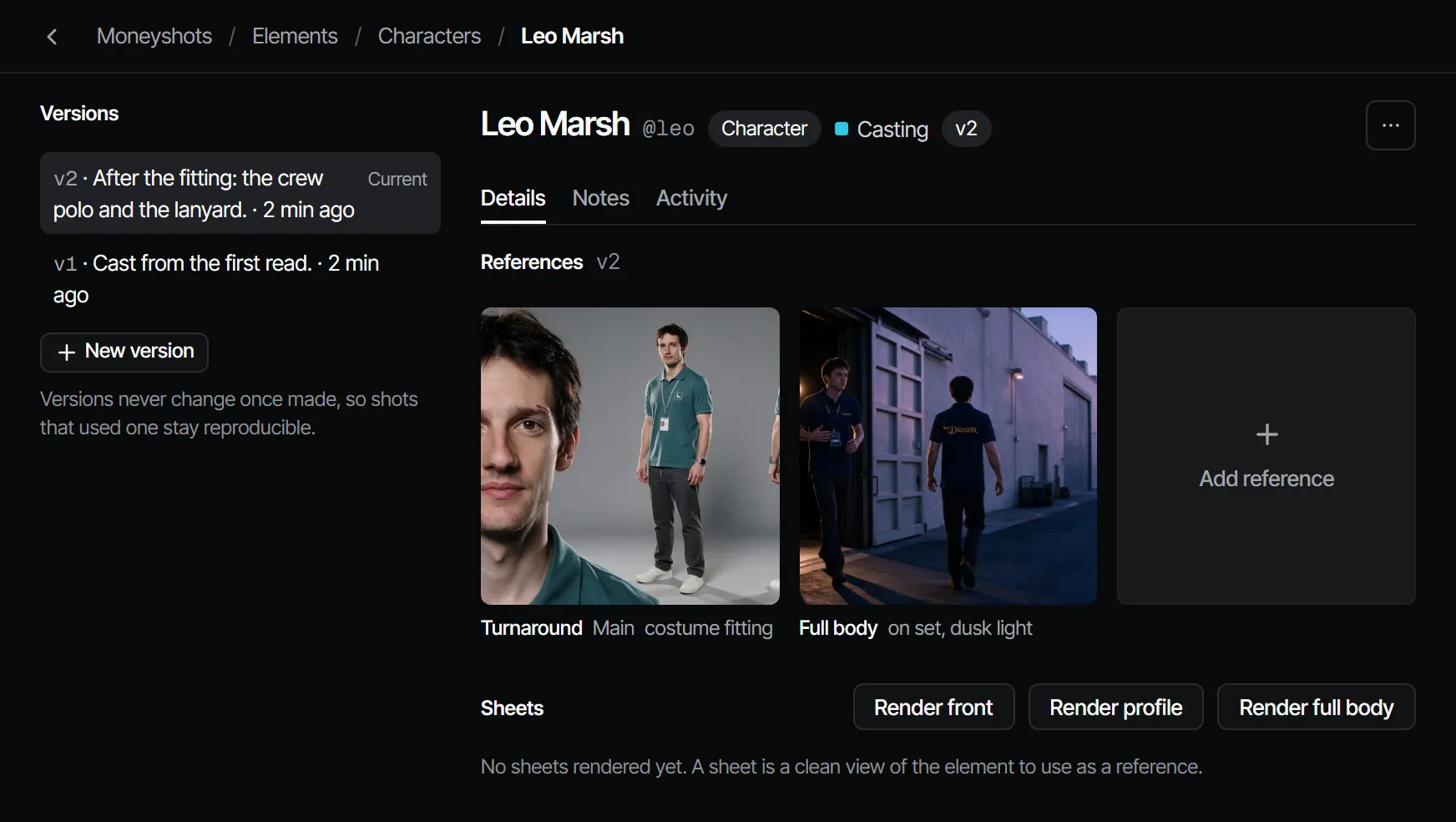
- Open the cast member. Under Sheets, render a sheet: a clean view of the character to use as a reference. Or upload a photo with Add reference.
- When a sheet is right, choose Sign off as reference. Filmsquare makes a new version with that picture as a reference.
You can also turn a take you like into a cast member: under a take, choose Save as element. The take becomes the cast member's first reference.
Use it in a shot #
In the shot description or the composer, type @ and pick the cast member. Every take that names the handle carries that character's references. In the cast list, select cast members and choose Copy @handles to copy their handles.
The composer shows the references that went into a take. A model with more reference slots holds more of them: see which model for each model's limits.
What happens when the look changes #
Every change to how a character looks is a new version, made with New version. Versions never change once a take used them, so shots made with the old look stay reproducible and your earlier picks stay as they were. Shots use the Current version unless a shot is pinned to an older one.
If one take drifts #
If a take shows the character wrong, tools make a new take next to it without losing your pick: Recast plays the take with another cast member, with the same motion, camera and timing. See Which tool do I use?.
More in the docs: references and sheets and Casting.