2.0 How a film is organised2.6 Elements, versions and @handles
Elements, versions and @handles
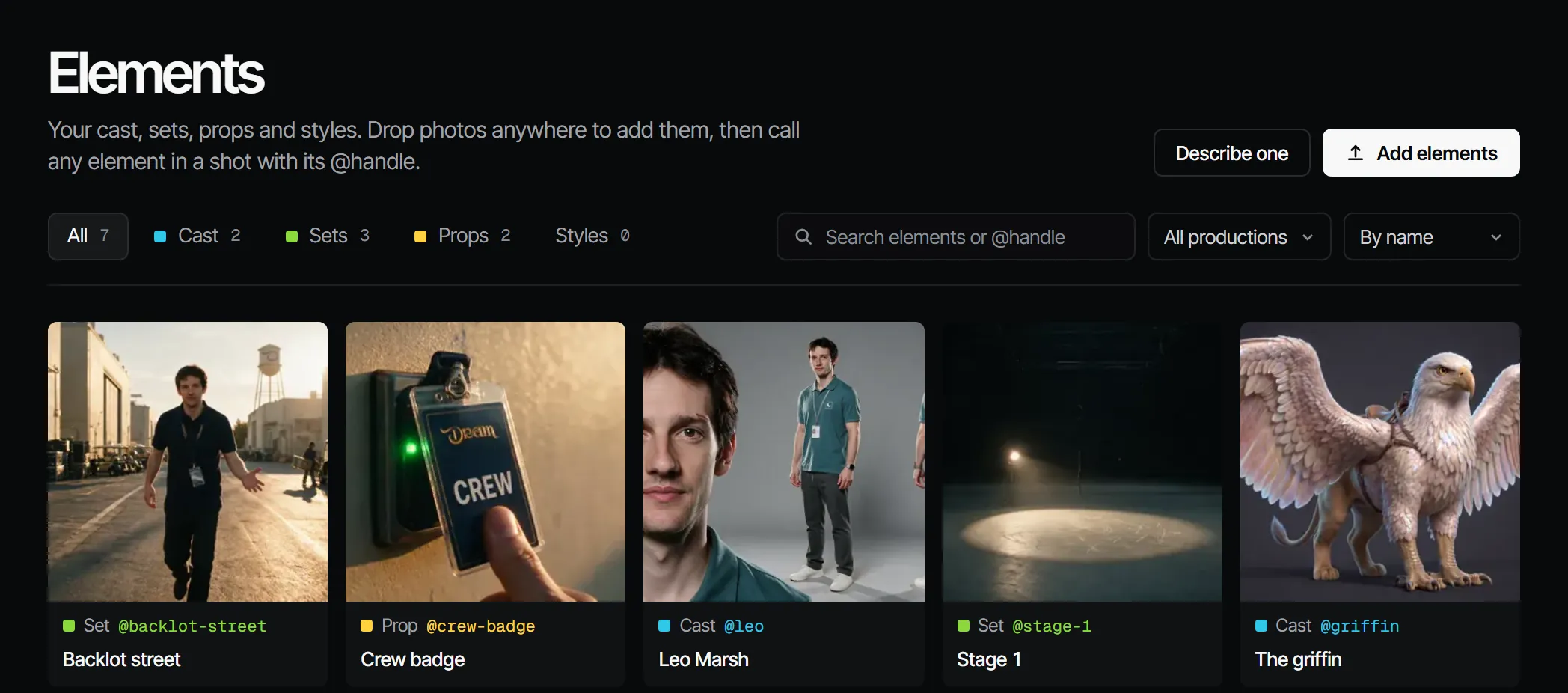
Cast members, sets, props and styles are elements with versions and reference pictures, called in any shot by their @handle.
An element is something that must look the same in every shot: a cast member, a set, a prop or a style. Each
element has an @handle, reference pictures, and versions. Sign one off once, then call it in any shot with its
handle.
Kinds of element #
| Kind | In the app | Department |
|---|---|---|
| Character | Cast member | Casting, Wardrobe |
| Location | Set | Sets |
| Prop | Prop | Props |
| Style | Style | A look: camera, lens, light, grade, film stock. See Styles |
A costume is not an element of its own: it is a look on a cast member, per scene.
@handles #
Every element has a handle, such as @anna or @backlot-street. Type @ in a prompt, a shot description or the
composer to bring an element in. Filmsquare then adds the element's reference pictures to the take for you, chosen
for the shot's size and angle.
On the Elements screen, Copy @handle copies it. Search elements or @handle finds one.
Where elements live #
An element belongs to one production, or to the whole workspace ("Every production in this workspace"). A workspace-wide element can be used in every production; a production's own element only there. In a production you work on them under Cast & sets → Cast, Locations and Props, and on styles under Create → Mood. A production also has its own Elements page, with a button on the Home of a new production: it shows that production's elements and the workspace-wide ones it uses (marked Every production), such as the ones its imported takes name. What you add there stays in that production. A change to a workspace-wide element counts everywhere, and you assign crew only to a production's own elements.
Making an element #
- From a breakdown: a script breakdown brings in the cast, sets and props it finds.
- Add elements: on the Elements page, drop photos anywhere (or pick several). Each becomes a draft card with a
kind and a name read from the file name (
chr_ines_v3.pngis the cast member Ines). Check both, then Add them all at once. Each photo becomes the element's first reference. - Describe one: pick a Kind and a Name and write a sentence. Filmsquare renders a reference sheet and uses the first one.
- Save as element: turn a take you like into a cast member, set or prop. The take becomes its first reference.
- From a tag: Create next to a tag under Script → Tagging makes the cast member, set or prop it names.
- New look: under Create → Mood, make a style from images you select. See The canvas.
- New style: under Create → Styles, write a style guide and add reference pictures, or use one from the library. See Styles.
Versions #
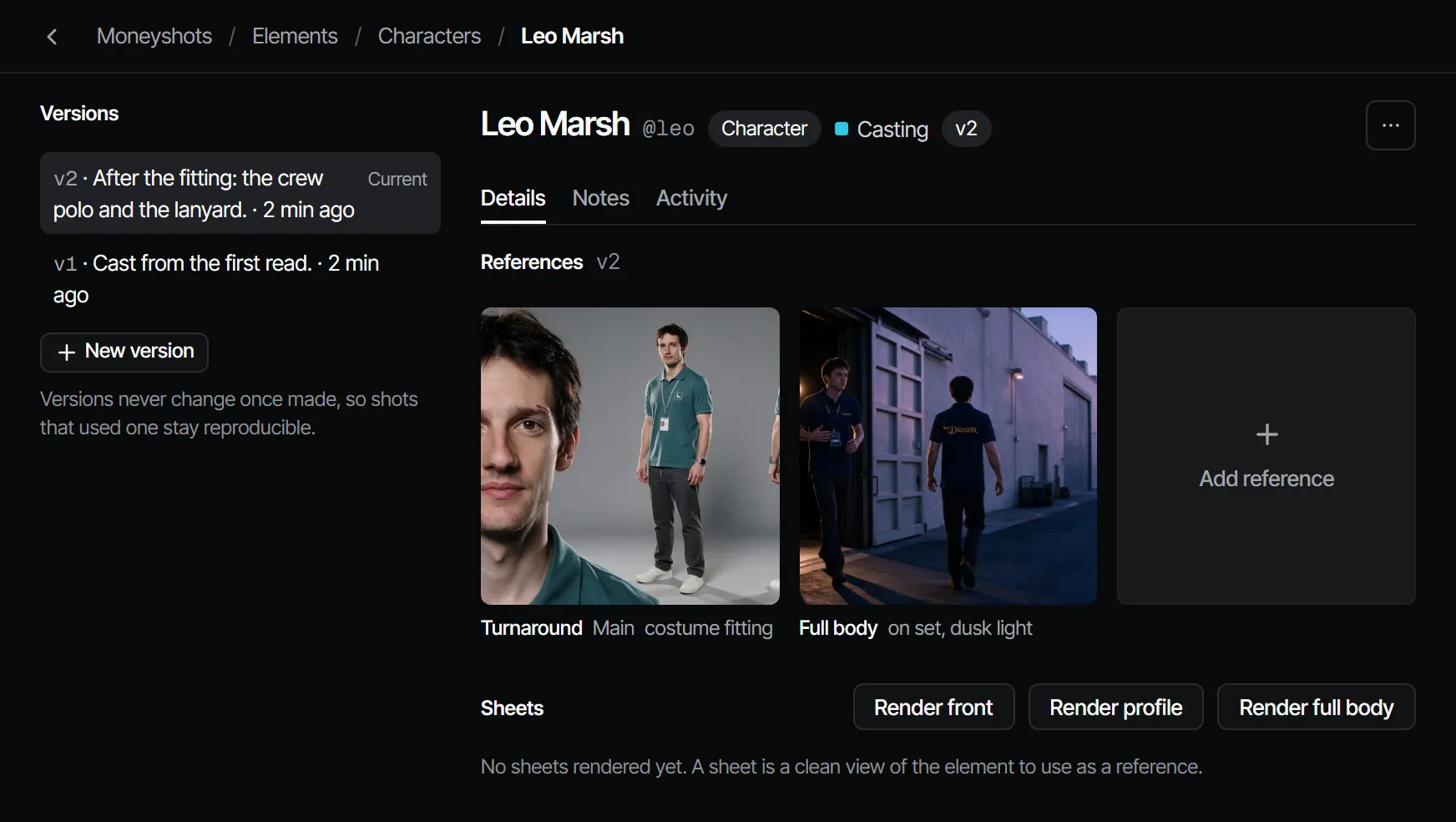
Every change to how an element looks is a new version. Versions never change once made, so shots that used one stay reproducible. The newest version is Current; shots use the current version unless a shot is pinned to an older one.
On the element's page, New version copies the current version, with every reference, as the next one. Then add or change references on it.
References and sheets #
A reference is a picture of the element with a role: front, three-quarter, profile, back, full body, turnaround, expression, detail, wide, and a few more. Add reference uploads one. The cross next to a picture of the current version removes it: Filmsquare makes a new version without it, and older versions keep it.
A sheet is a clean view of the element, rendered to use as a reference. Render one from the element's page; when it is right, Sign off as reference: Filmsquare makes a new version with that picture added.
Versions and sign-off #
A new version (v2 and up) of an element is a change of signed-off work. It makes its department stale in every episode still in work that uses the element:
| Element | Departments that go stale |
|---|---|
| Cast member | Casting, Wardrobe, Voices |
| Set | Sets |
| Prop | Props |
A new element (v1) does not: the breakdown that brought it in was already signed off. See Sign-off and gates.
Archiving #
Archive… takes an element out of the lists. Shots and takes that used it keep their history. Nothing is deleted.
With your own Claude #
get_script returns the handles a production already has, so a breakdown reuses them. view_media shows Claude a
reference picture; upload_file adds a picture as a production asset for a reference. Versions, references and
sheets go through find_actions and run_action (for example forkElementVersion, generateForElement,
acceptElementTake). removeElementReferences takes old pictures off an element: a new version without them
becomes current, and earlier versions keep theirs. See What Claude can do.
With Claude
MCPYour own Claude does this over MCP, in your name and with your role:
get_scriptReads the latest script revision of an episode, with the @handles that already exist.
Ask: Read the script of episode 2 and tell me which characters have no @handle yet.
view_mediaLooks at a still, keyframe or take; video comes back as its poster plus a download link.
Ask: Show me the picked still of shot 3 and tell me if it matches its references.
upload_fileAdds a file you have as a new take on a shot or scene, or as a production asset (10 MB at most).
Ask: Upload this reference photo to the assets of the production.
find_actionsSearches everything the API can do and returns the matching actions with their inputs.
Ask: Find the action that changes a step's sign-off rule.
run_actionRuns one action found with find_actions, as you, with your role and rights.
Ask: Pick the second take of shot 5 on episode 2.
Connect Claude 5.1