4.0 Working together4.3 Notes, pins and review
Notes, pins and review
How to leave a note pinned to a spot or a moment, mention crew, resolve and carry notes forward, and set a shot's review status.
Feedback lands exactly on the thing it is about: a region of a still, a moment in a video, a shot, a scene, an episode, an element, a folder, or a spot on a canvas. Each note is a thread with replies, and it stays with the version it was made on.
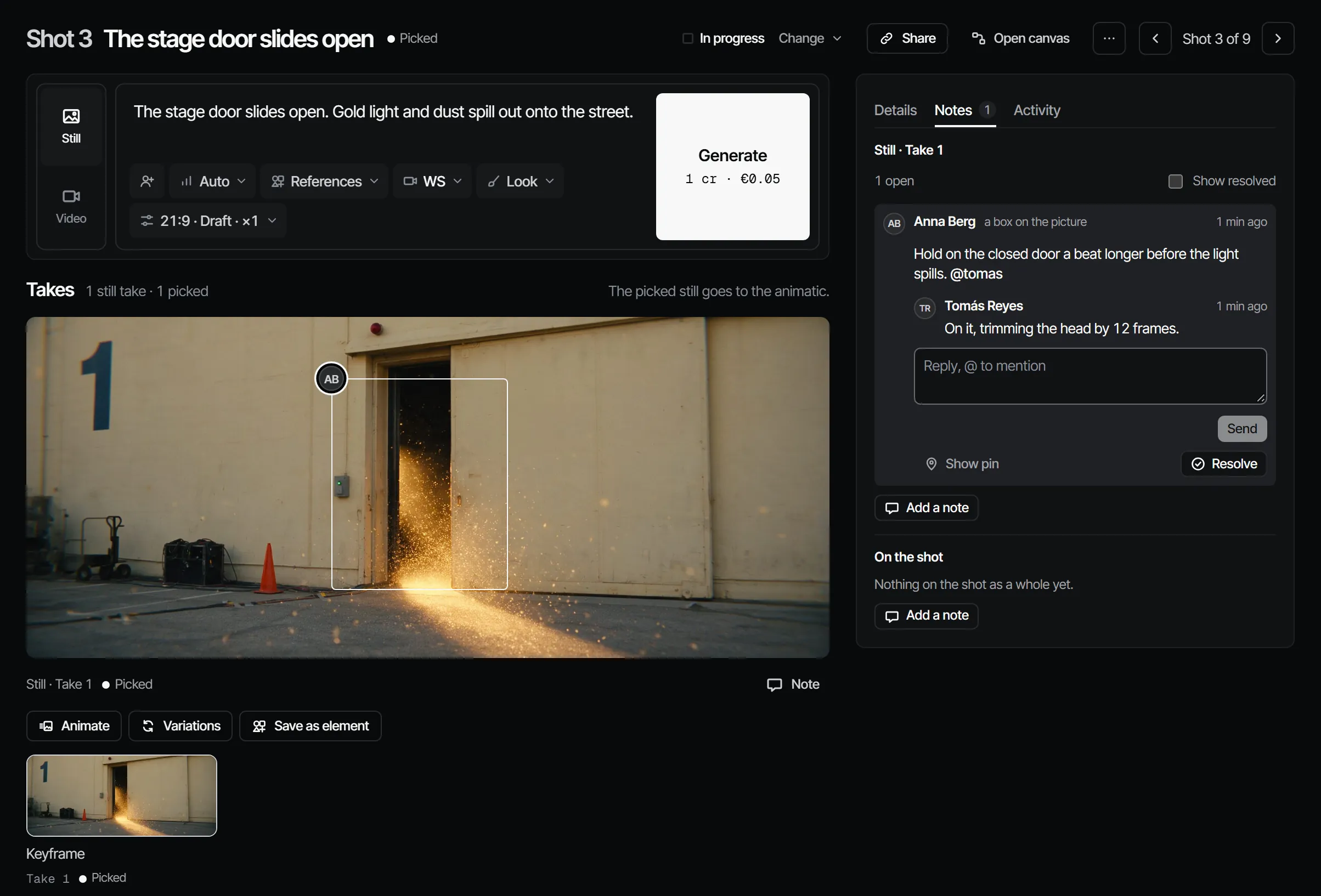
Pin a note #
- Open the shot (or take, element, episode) you want to comment on.
- Press C, or choose Comment, to enter comment mode.
- Click the picture for a point, or drag for a box. On a video the note is pinned at the playhead.
- Type the note and send it. Type
@and a name to mention someone. - Press Esc to leave comment mode.
| Pin | Where |
|---|---|
| Point or box | A spot on a still or a frame, measured from the top left |
| Timecode | A moment in a video, in frames, with an optional region on the picture |
| None | The item as a whole ("On the shot") |
| Canvas position or node | A spot on a canvas |
Mentions #
@name notifies that member, as long as they can see the production. People in a thread also get its replies.
A word after @ that is not a person stays as text: it may be an element's @handle.
Reply, resolve, reopen #
- Reply in the thread.
- Resolve when the note is handled. Reopen if it is not.
- Resolved notes are hidden; turn on Show resolved to read them again.
Messages are never edited or deleted. A correction is a new message, so the history stays as it was.
Notes on a newer version #
A note belongs to the version that was on screen. When a newer version or take arrives, open notes from the earlier one are listed as comments on an earlier version. Choose Carry forward to open the same note, with the same pin, on the new version. The original keeps its history and links to the new one.
When you swap a retake into the cut with Use in cut, answered notes are resolved and the other open notes go along to the new take.
Notes on a sheet #
A note on a sheet quotes the text it is about, or, with Note on the whole sheet, is about all of it. It also says what it wants:
| Intent | Means |
|---|---|
| Change | This must change (the default) |
| Idea | Optional: take it or leave it |
| Question | Needs an answer, not necessarily a change |
On a quote you can Suggest text: the words that should replace it, or nothing to delete the passage.
Sheets are delivered by someone's own Claude, so a sheet note is not resolved by whoever changes the text. When the note is worked into a new version, it is Handled by that person and waits for you: Confirm resolves it, Reopen sends it back with a short note that lands in the thread as a reply. The Notes header counts both: "3 open · 1 to confirm". A note that is still open moves along to the sheet's next version, with its intent, suggestion and handled state, and a guest's note stays visible to the guest on their review link.
The inbox #
The bell in the top bar opens your Inbox: mentions, replies, sign-off requests and deliveries. Choose Mark all read to clear it. What waits for your sign-off is on Home; see What's waiting on you.
Review status of a shot #
A shot (and an episode) has a review status: In progress, Waiting for sign-off, Signed off or Changes requested. In the shot's details:
- Ask for sign-off marks it ready to look at (maker and up);
- Sign off or Request changes decides (director and up);
- Back to in progress takes it back.
A sign-off here is recorded with the person and the version: by default the shot's picked video, or else its picked still. A newer pick makes that sign-off stale. This is the shot-level review; the department sign-off of an episode is on the department's page, see Sign-off and gates.
Reviewing the cut #
Review → Player plays the cut, or an uploaded edit, with its notes beside it. A new note lands on what is playing, or on the cut when nothing plays. Share makes a link for guests. From an open note on a take, a maker can start a retake. Pins and drawing stay in the cut, under Trim.
What plays at the top picks the Animatic, the Board cut or a named edit. The animatic plays the picked stills of the episode back to back, with the same notes on the timeline, the share link and the Animatic sign-off. Making an edit, with Upload video and Open in editor, is under Edit → Edits; here you watch and sign off.
Activity #
Every item keeps its history, newest first: takes rendered, picks, comments, resolutions, sign-offs and review status changes.
With your own Claude #
Your Claude can read every open note with get_feedback (with its pin), look at the picture or frame with
view_media, and answer and resolve with reply_feedback. On a sheet, get_feedback gives one bundle: the open
notes with their intent and suggestion, and how the notes of earlier versions ended (confirmed, reopened, a
suggestion declined). Claude never resolves a sheet note: it marks it handled; when there is a suggestion, the
applied, adapted or declined suggestion_outcome is required. You confirm. The process_feedback prompt walks it through an episode's notes: a plan
first, then the changes, a reply in every thread. See Prompts and working method.
Related #
With Claude
MCPYour own Claude does this over MCP, in your name and with your role:
get_feedbackReads the comment threads on a shot, take, episode or element, with each pin's timecode or region.
Ask: Which notes are still open on episode 2?
reply_feedbackReplies in a comment thread as you, and resolves it once the note is handled.
Ask: Reply to the note on shot 4 that the new draft fixes the eyeline, and resolve it.
view_mediaLooks at a still, keyframe or take; video comes back as its poster plus a download link.
Ask: Show me the picked still of shot 3 and tell me if it matches its references.
Connect Claude 5.1