7.0 Account and billing7.3 Workspace settings and members
Workspace settings and members
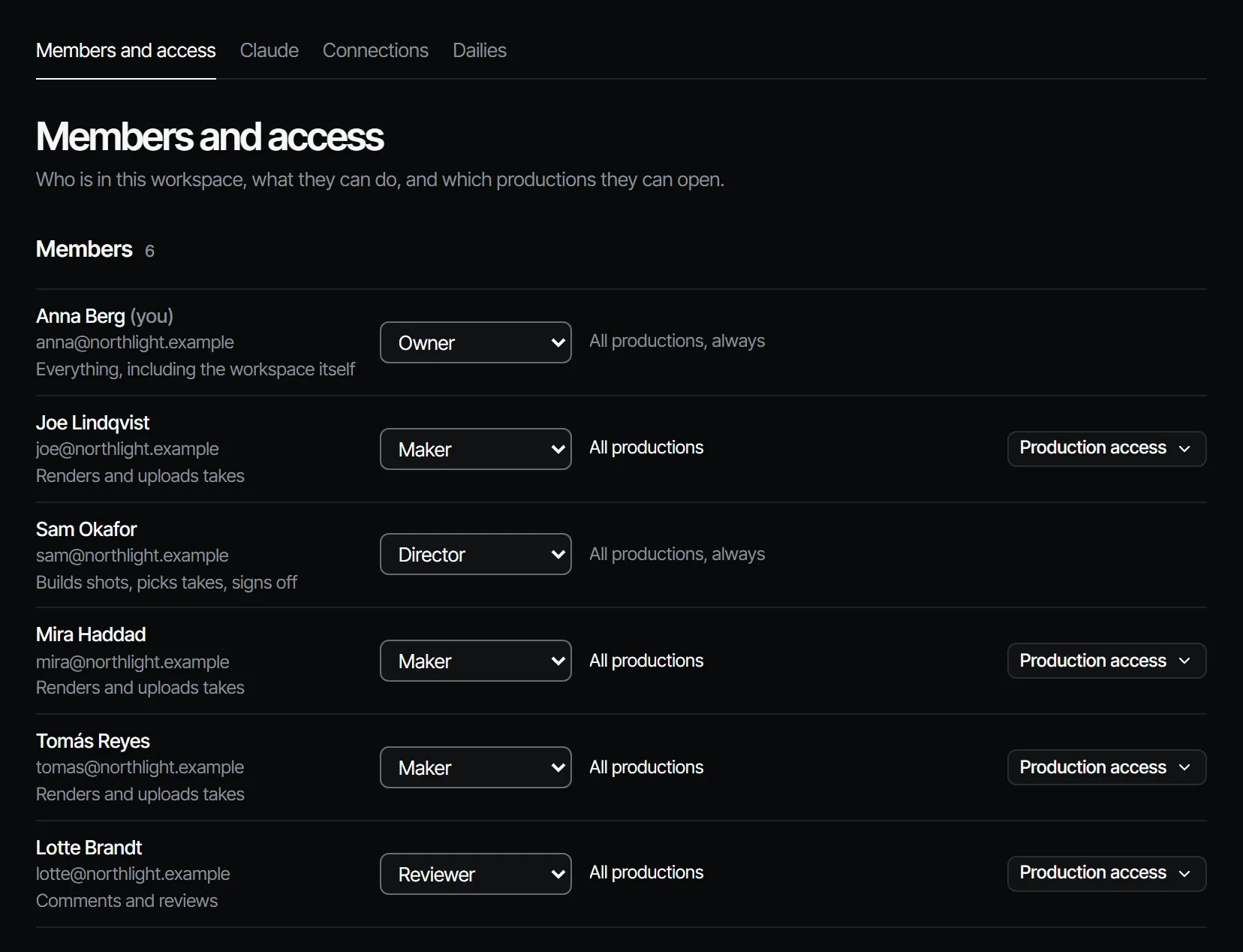
Invite people to a workspace, set their role and which productions they can open, and manage a production's own settings.
A workspace is your studio: its productions, crew and costs live there. Its settings are on Workspace (its name and logo), Members (who is in it and what they can do) and Billing (see Plans, credits and packs). They are in Settings, which opens from the workspace menu at the top of the sidebar, over the screen you are on. Your own pages are in the same window: Account, Notifications, Claude, Connections and Plugins, under your name at the top of the sidebar.
Inviting people and changing roles or access is for producers and owners. Everyone else sees the list on Members, read-only. An owner also exports and closes the workspace on Workspace, see Export your data, close your account.
Logo #
The workspace menu at the top of the sidebar shows the workspace's own logo, which is the brand's mark until an owner uploads one. In Settings → Workspace → Logo, an owner chooses Upload (PNG, JPEG, WebP or GIF, up to 10 MB), Replace or Remove; Remove puts the brand's mark back. Everyone in the workspace sees the logo, but only an owner can change it.
Roles #
| Role | Does |
|---|---|
| Owner | Everything, including the workspace itself |
| Producer | Runs briefs, members and costs |
| Director | Builds shots, picks takes, signs off |
| Maker | Renders and uploads takes |
| Reviewer | Comments and reviews |
| Viewer | Looks, nothing else |
Each role can do everything the roles below it can. On a paid plan, owners, producers, directors and makers take a seat; reviewers and viewers are free. For the full table of who may do what, see Crew, roles and access.
Invite someone #
- Open Members and go to Invite someone.
- Enter the Email and pick a Role (up to your own, never owner).
- Under Productions, pick what they can open: All productions, Chosen productions or Assigned work only.
- Choose Send invitation. If a seat is needed and none is free, an owner sees Add a seat and send invitation with its monthly price.
- Copy the link with Copy link and send it to them. It works once and is shown only now.
The invitation waits under Invitations until it is accepted. It expires after 7 days. The person opens the link, signs in or creates an account (no access code needed), and joins with the role you chose. See Sign up and your workspace.
To take an invitation back, choose Revoke next to it: the link stops working and the seat it held frees up.
Production access #
| Setting | They see |
|---|---|
| All productions | Every production in the workspace |
| Only these productions (Chosen productions when inviting) | The productions you tick, plus any production they are assigned work in |
| Only what they are assigned (Assigned work only when inviting) | A production only once a brief in it is offered to them |
Owners, producers and directors always see every production. Use Only what they are assigned for freelancers who should see their own work and nothing else. To change it later, open a member's access and choose Save access.
Change a role #
A producer or owner changes a member's role with the role menu on Members. It offers roles up to your own, and a member above your role cannot be changed by you. A connection or key a person made never has more rights than their current role.
Rename the workspace #
The owner renames the workspace under Name on Workspace: type the new name (up to 60 characters) and choose Save. The sidebar and the workspace menu show it at once. Everyone else sees the name as text.
Take someone off #
A producer or owner takes a member off with Remove at the end of their row, and confirms with Remove and their name. You can take off anyone up to your own role, never yourself: a producer cannot remove an owner, and the last owner always stays.
- They lose access at once. Their API keys and Claude connections for this workspace stop working.
- Their open work goes back to unassigned: their step assignments end and briefs they had not handed in are cancelled. A delivery they handed in waits for your decision as before.
- What they signed off, commented and made stays, with their name.
- Their seat frees up, so an owner can lower the seats under Billing right after.
- Sign-offs that waited on them go to the other signers of the department, or to a director or higher when none is left. Sign-offs they already gave keep counting.
Nobody is told by mail.
Leave the workspace #
Anyone can leave a workspace with Leave workspace on Workspace, signed in to the app (not with an API key or through Claude). The app then opens your next workspace. The last owner cannot leave: make someone else an owner first. To leave Filmsquare altogether, see Close your account.
Coming back #
Someone who left or was taken off can be invited or added again. They come back with the role and access of the new invitation, and their earlier work is still under their name. A role that takes a seat needs a free seat.
A production's own settings #
Each production has Settings → General: Name, picture, who can open it, archiving and deleting it.
- Production: the name and picture the crew sees in Productions, the sidebar and every link to it. Upload picture (PNG, JPEG, WebP or GIF, up to 10 MB).
- Format: set when the production was made.
- People: everyone who can open this production. Add someone from the workspace, or Invite by email straight into this production.
- Archive production: takes it out of Home, the sidebar and Productions for the whole crew, kept as it is, under Productions → Archived. Restore production brings it back.
- Delete production…: takes it out of Filmsquare for the whole crew. Type its name to confirm. Takes, costs and sign-offs stay on record.
Who works on each department and who signs it off is set under Crew & sign-off → Crew in the production, see Sign-off and gates.
More than one workspace #
You can be a member of several workspaces, with a different role in each. The workspace switcher at the top of the sidebar lists them with your role, and switches between them. An API key or a Claude connection always belongs to one workspace. New workspace in the same menu starts another one. You own one Free workspace: at that point the menu offers a plan for it instead, and once it has one you can start the next. The Free workspace itself stays as it is.