4.0 Working together4.4 The cut
The cut
Watch an episode's picked takes back to back, note what to change, make a retake from the notes, swap it in and export the cut.
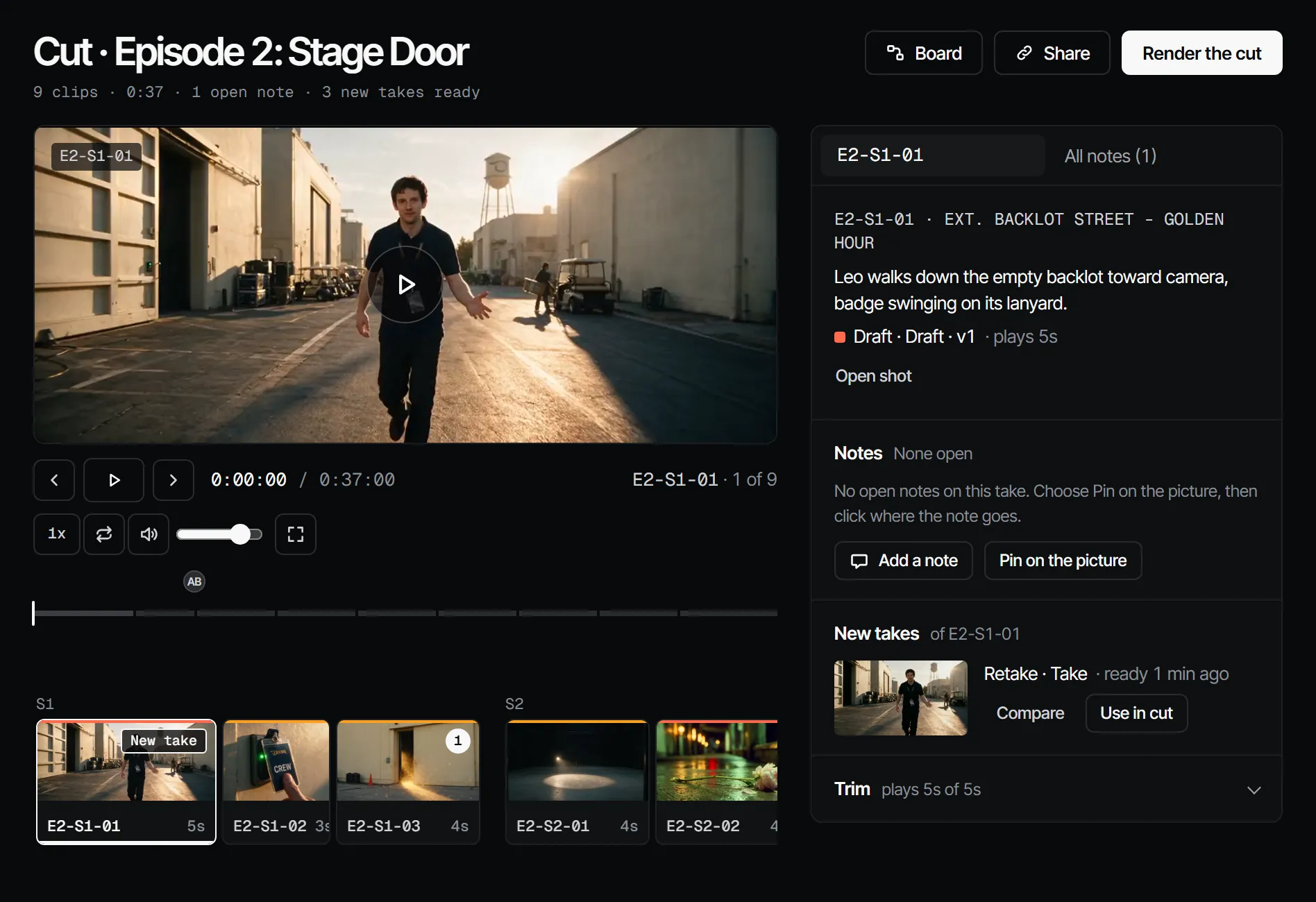
The cut plays every shot of an episode back to back, each with its picked take, in cut order. You watch it, pin notes at the moment they are about, make a retake from those notes, and swap the new take in. When it is right, you export it to one video file, or open it in the editor.
Open the cut #
Open Edit → Cut for the rest of this page: notes on a frame, retakes, swaps, trims and exports. Press Space to play or pause. Each shot plays its picked video; a shot with only a picked still holds that still for the shot's length, with its dialogue. A shot with nothing picked shows a placeholder with its code and "Nothing picked yet" until you pick a take in the shot.
| Key | What it does |
|---|---|
| Space or K | Play or pause |
| J and L | Play backward or forward, faster with each press |
| ← and → | One frame back or forward |
| Shift + ← or → | Ten frames back or forward |
| ↑ and ↓ | Previous or next clip |
| M | Mute |
| F | Full screen |
| Ctrl + L | Loop this clip |
Next to the timecode you also set the speed and the volume.
Leave a note at a moment #
- Press C and click the picture, or choose Add a note.
- Type the note. Use
@to mention someone.
The note goes on the take that is playing, so it also shows on the shot and in the inbox. In the cut, its timecode is the time in the cut, the same as on the player. On the shot, it is the time inside that take. All notes lists every note of the cut in the order they play; click one to go to that moment. Notes about the episode as a whole (pacing, music, the order) go there too. In comment mode, L picks the line tool instead of playing. See Notes, pins and review.
Make a retake from notes #
- Select the clip. Under Retake from notes, tick the notes the new take should answer.
- Their words become the instruction. Edit it if you like.
- Choose Draft or Final. The price stands next to it in credits and euros.
- Choose Retake. The new take renders under New takes.
A retake uses the same model, references and input as the take it comes from, with the instruction added to the prompt. A take that was uploaded has nothing to retake from; the clip says so.
Compare and swap #
- Choose Compare to play the new take next to the one in the cut.
- Choose Use in cut.
Then:
- notes the retake answered are resolved;
- other open notes go along to the new take;
- Undo works for 12 seconds.
Directors and producers choose what goes in the cut.
Trim and order #
Under Trim, set In at playhead and Out at playhead, or go back to Full length. For a still, the trim is how long it holds. The trim belongs to this version: a new take plays in full.
Move earlier and Move later change the order. There is one order: moving a clip in the cut moves the shot on the shot list too. Reordering needs the director role.
Export MP4 #
- Choose Export MP4.
- Pick 720p (the default) or 1080p, then choose Export 720p or Export 1080p.
- When it is ready, choose Download under Exports.
The export is one MP4 of the whole cut: every clip with its trim, stills with their dialogue, and black for a shot with nothing picked. The cut is frozen at the moment you start, so you can keep working while it renders. It is a file to download or share, not a version for review: for that, see Send to review.
Edits #
Edit → Edits lists the board cut and every named edit of the episode: an uploaded video or an edit made in the editor. A row opens the edit with its tools; the board cut opens Edit → Cut. New edit starts one, with Open in editor or Upload video. To watch an edit with its notes and sign it off, choose it under What plays in Review → Player.
Upload a video #
A montage made elsewhere goes in as an edit, with its own name, next to the board cut. It costs no credits; it counts towards your storage.
- In Edit → Edits, choose New edit, then Upload video, and pick the file: an MP4, MOV or WebM of up to 5 GB. The bar shows how far it is, and the edit opens when it is in. Keep the tab open until then.
- Write notes beside the player. Each note lands at the moment that plays, counted in the frames of the file.
- Choose Share to make a link: guests watch the newest version and leave notes on timecode.
- Choose Upload new version for the next cut. Open notes go along, resolved ones stay behind. Under the player, the version picker goes back to v1.
Rename and Archive are next to the edit's name. An archived edit leaves the list and its links close; nothing is deleted. An upload has no shot behind it, so it has no retake.
Open in editor #
For a montage that is more than the board cut, Open in editor starts FilmCraft full-screen in your browser. It costs no credits; there is nothing to install.
- On Edit → Cut, Open in editor opens the episode's newest editor edit, or makes one from your picks in order, with their trims and holds. All picks, takes and uploads of the production wait in the bin. New edit → Open in editor under Edit → Edits always starts another one.
- Cut as you like. Every change is saved at Filmsquare within half a minute, and each save is kept. Close the tab and go on tomorrow, on any computer.
- A file you drag into the editor is uploaded to the production when it saves. If that fails, the save is refused and the bar says why.
- Refresh media brings in new takes and every file the editor has not loaded yet.
The timeline is there as soon as the editor has started, and you can cut at once. The media arrives while you work: first the clip under the playhead, then outward along the timeline, then the bin. The bin loads at once only for a small edit; otherwise a bin file loads when you put it on the timeline. The bar at the top counts it: Media 5 of 19. When something did not arrive it says 2 clips did not load, and Try again fetches only those. A clip with no usable file yet, no proxy and an original over 500 MB, shows as offline. Clips are kept on this device, in the browser, so opening the same edit again does not download them again. They are removed when you sign out. A private window keeps nothing.
One person edits an edit at a time. Someone else who opens it sees Open by and your name. If you stop working, it is free again after a minute and a half. When it opens somewhere else, this tab stops saving and says so.
The editor plays 720p proxies while you cut, and an original up to 500 MB until its proxy is ready. It runs best in Chrome.
An edit holds at most 2000 clips and a timeline of 8 MB. Above that the bar says Not saved and why, and your work stays open in the editor; going back asks first. Remove files the timeline does not use from the bins and it saves again.
Send to review #
Send to review, in the editor's bar or on the edit under Edit → Edits, renders a saved rev on the original files. It costs no credits. The render becomes the next version of the edit, with its open notes along, and plays in Review → Player with the tracks of that rev under the player. A note on a clip lands on its shot, so a retake from notes works as on the board cut.
Export OTIO, next to the edit's name, gives the timeline to Resolve or Premiere. The way back is an uploaded video.
Newer takes #
When a shot picks another take after the cut, the edit says 3 clips have a newer take, and Edit → Edits shows the count on its row. Update puts the picks on the timeline as the next rev:
- Each clip stays where it is, with its length and its trim.
- A take too short for the trim keeps the length, from earlier in the take.
- A take too short for the length makes the clip shorter. The gap stays, and the line under the edit's name says which clip.
If someone else has the edit open, Update is refused with their name. If you have it open, the new take lands in your open editor. Then Send to review makes the new version. An uploaded video has none of this.
With your own Claude #
Notes in the cut are ordinary threads, so get_feedback and the process_feedback prompt pick them up. For a
retake, Claude finds the actions with find_actions (search "revise take": estimateReviseTake prices it,
reviseTake starts it) and runs them with run_action. See
What Claude can do.
Claude can also cut an edit with no browser open: the rough_cut prompt starts from the picks, runs commands on the
timeline (searchEditCommands, runEditCommands), looks at frames (view_edit_frame) and sends a rev to review
(sendEditToReview). updateEditNewerTakes does what Update does. None of it costs credits.
With your own editor open, Claude's commands run in that editor, so you see the clips land, and the bar says By Claude. What you did first is saved first; Claude then reads that rev and sends its batch again. If the editor does not answer within 25 seconds nothing happens, and Claude hears so. Somebody else's Claude cannot drive your editor: it hears Open by and your name.
Related #
With Claude
MCPYour own Claude does this over MCP, in your name and with your role:
get_feedbackReads the comment threads on a shot, take, episode or element, with each pin's timecode or region.
Ask: Which notes are still open on episode 2?
reply_feedbackReplies in a comment thread as you, and resolves it once the note is handled.
Ask: Reply to the note on shot 4 that the new draft fixes the eyeline, and resolve it.
Connect Claude 5.1