1.0 Getting started1.4 The studio at a glance
The studio at a glance
What each part of the Filmsquare studio is for (Home, Create, Productions, Elements, Explore, Academy) and where the top bar, inbox and credits meter sit.
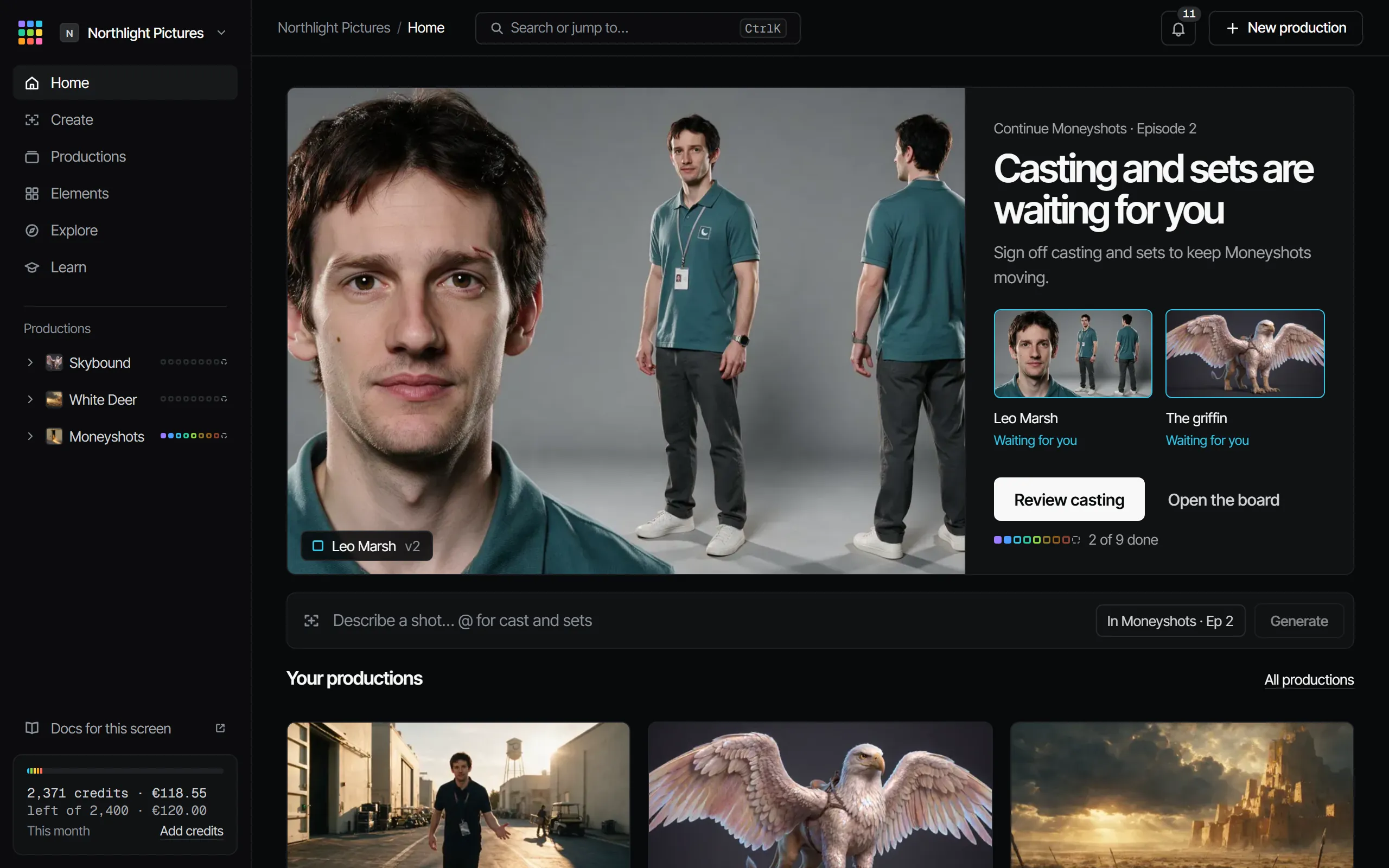
The studio is the web app at https://app.filmsquare.ai. A sidebar on the left holds six places: Home, Create, Productions, Elements, Explore and Academy. The top bar holds the breadcrumb, search and your inbox.
The sidebar #
| Place | What it is for |
|---|---|
| Home | What waits for you, your recent productions, and the quickest way to start something |
| Create | Make a single still or video from one prompt, outside any production |
| Productions | Every production in the workspace, and New production |
| Elements | Your cast, sets, props and styles, across all productions |
| Explore | Films and Production Books from the studio and the community. Opens with the first Originals |
| Academy | Short lessons, one outcome each, with a button that opens the place where you do it |
Under the six places, Productions lists your productions in your own order, each with its strip of nine department squares. Drag a production up or down to move it, or use its ⋯ menu (a right-click opens it too): open it in a new tab, copy its link, rename it, move it up, down or to the top, and for producers its settings. The order is yours alone and follows you to every device; Productions shows the same order. At the bottom sits the credits meter (for example "500 credits · €25.00", with Add credits).
The workspace menu at the top of the sidebar opens your workspaces, Settings and Billing, and holds your account: cookie settings and Sign out. Settings opens over the screen you are on, with your own pages (Account, Notifications, Claude, Connections) and the workspace's (Workspace, Members, Billing, Import for a producer) in its sidebar.
The top bar #
- Breadcrumb: where you are, for example your workspace › a production › Episode 2.
- Search or jump to… (⌘K): jump to a production, an episode, a scene, a shot, an element, a canvas or a folder, or run a command.
- Bell: your inbox, with the count of unread notifications. See Notes, pins and review.
- At most one primary action for the screen you are on, for example New production on Home.
Home #
Home shows what needs you first:
- Waiting for you: the department you are asked to sign off, with Review or Open to go there. More items sit under Also waiting on you, with Go through them one by one for the sign-off queue.
- Your productions: your recent productions with their department strip.
- Tools and Academy: four tools with their sample and price (owners and producers), and four lessons; All tools and All lessons open the rest. A line at the bottom links to the Kit, Plugins and Claude.
- On a first visit: a welcome line with Start a production, plus the getting-started checklist.
Create #
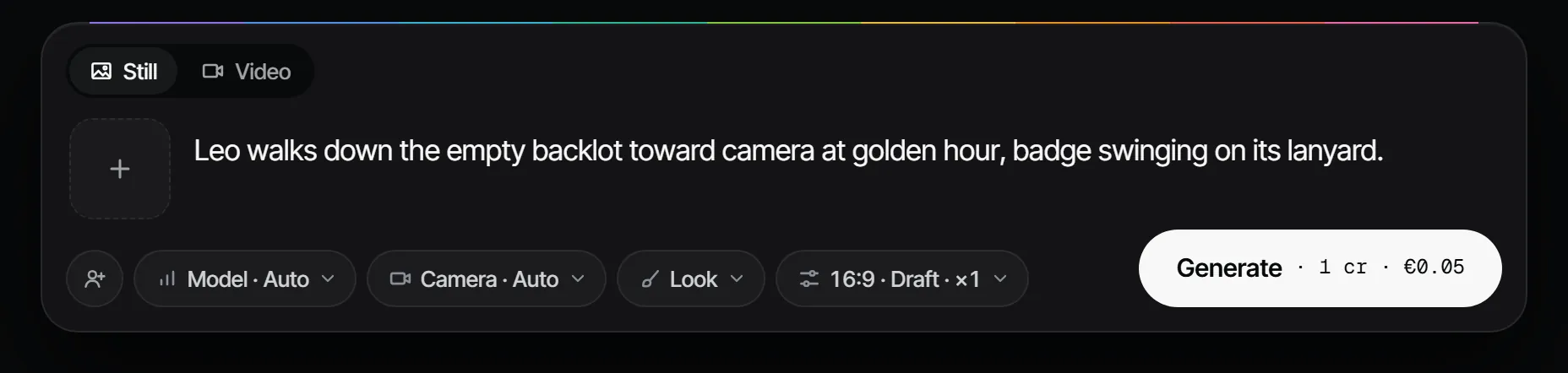
Create is where you make a single still or video from one prompt, with no production needed, and where you see
everything your crew has made. Type the prompt, use @ to bring in cast, sets and props, and choose Generate. The
button shows the price in credits and euros before you start. A take you like can go into a production with Use in a
production, or become a cast member, set or prop with Save as element.
Create has the same three tabs as a production. Gallery holds the takes. Tools opens the tool wall and each tool's own page, as in a production: choose a take from your productions or your loose takes, or upload one, and the page says where the new take lands: next to the take it came from, in its production or in Loose. Lip sync needs a production shot with dialogue, so it runs inside the production. Mood shows every look you can see, with its production; New look makes a look for the whole workspace from your loose stills or images you add; a loose still is copied for the look, so the crew sees its picture and your sketchbook stays private. Below the looks, Canvases holds the boards of the whole workspace.
The screen shows the takes of all your productions in one wall, newest first, and loads more as you scroll. Next to All, Stills and Clips sits a production filter: All productions, Loose (your own sketchbook, only when you have one) or one production. Your choice is remembered. You see the productions you have access to, and no others. Open a take from a production and Open in production takes you to its shot. From there you can also copy its prompt, use it as a reference, run a tool on it or save it as an element. Use it as a reference, or drag it onto the prompt, and the take you make is loose: the picture is copied into your sketchbook, so nobody else sees what you made with it, not the production's owner or producer either, and the production is not told its take was used. The copy stays in your sketchbook if you later lose access to the production. Changing the production's own shot happens inside the production.
Making takes in Create needs the director role or higher. A take you make here lands in Loose: when the filter is on anything else, Saves to Loose shows next to Generate, and making a take while one production is selected switches the filter to All productions so you see it. Below director there is no prompt bar: you see the wall and can copy a prompt or open a take in its production.
The prompt of a take shows when you point at it. While you are in Create the sidebar folds to its icons, and your balance is in the workspace menu (the workspace's avatar at the top).
Productions #
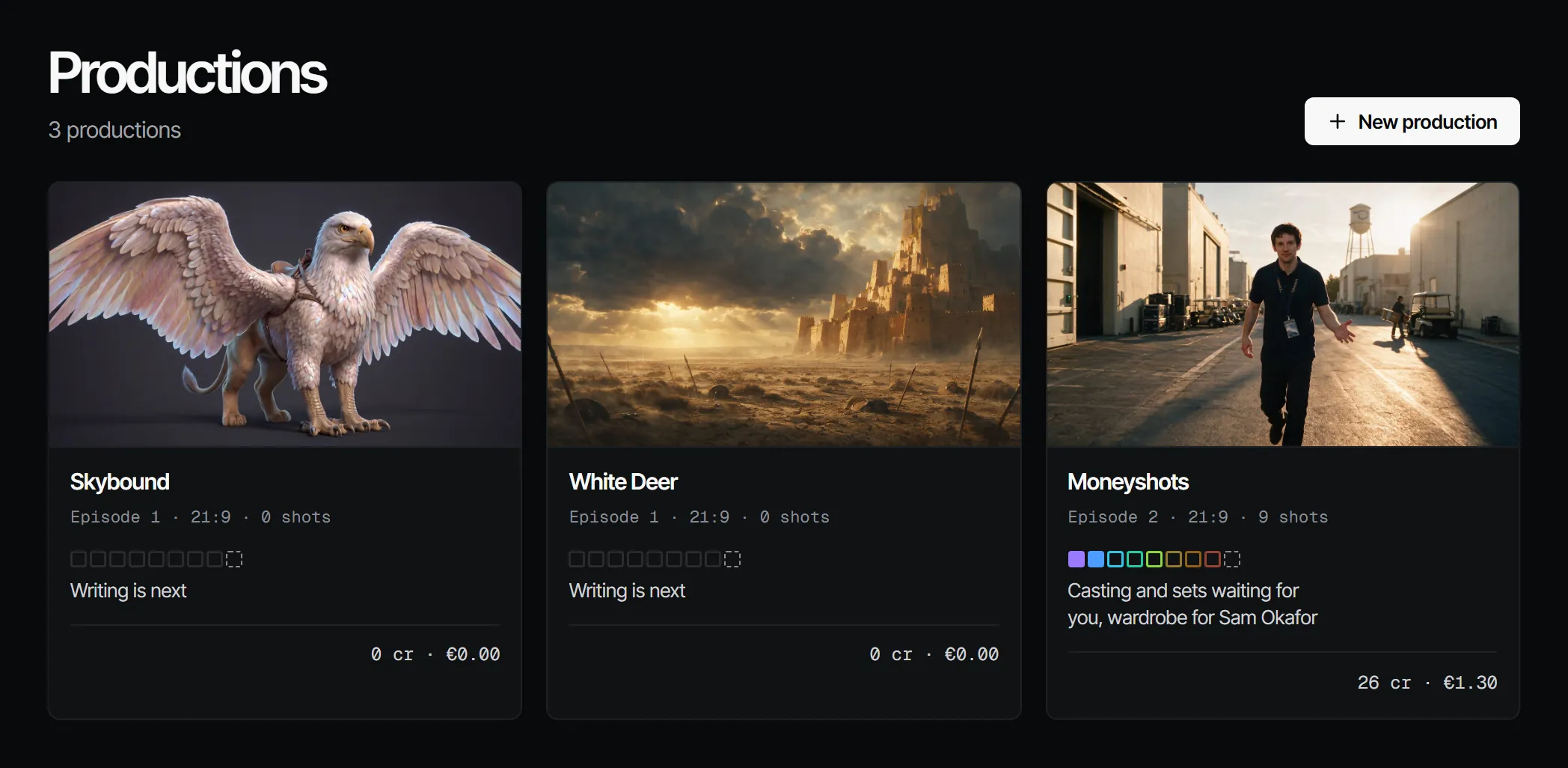
Each production card shows its cover, its latest episode, the department strip with a plain line under it ("Sets waiting for you"), the crew and what it has spent. Open a production and it expands in the sidebar; see Inside a production. See Productions, episodes, scenes and shots.
Inside a production #
An open production expands in the sidebar into its menu: one item per block that is on, each with tabs on top. Settings is always there, and Home comes with Crew & sign-off. A series has an Episode picker under the production and every item shows that episode; a film has no picker. Tabs that need an episode show once there is one.
| Item | Tabs | What it is for |
|---|---|---|
| Home | Status, Files | The nine squares of the process, what waits on whom, costs and episodes; folders and files |
| Script | Script, Docs, Tagging | The script, written or imported, the other files of the step, and tags on the script |
| Cast & sets | Cast, Locations, Props, Costumes | Cast, sets, props and looks per scene |
| Create | Gallery, Tools, Mood | Every image and clip of the project, with the composer; operations on a take; canvases and looks |
| Storyboard | Shot list, Storyboard, Shots, Animatic, 3D | The shots as a table, stills and the reel, takes per shot, Blender frames. Opens on Storyboard |
| Edit | Cut, Final | Trims and order of the shots, finals. Opens on Cut |
| Review | Player, Notes | The animatic, the cut or an uploaded edit, with notes on the timecode; every open note in the project |
| Crew & sign-off | Crew, Makers | Who works and who signs off, briefs |
| Settings | General, Blocks | The production, which blocks are on |
The nine departments stay what is signed off; the menu is where you work. See Departments and the nine steps. Extra departments add a tab: Voices under Cast & sets, Music and Sound under Edit.
Elements #
All cast members, sets, props and styles of the workspace, with filters per kind and production. Each element has
an @handle you can call in any shot. See Elements, versions and @handles.
Explore #
Explore opens later. It will hold films and Production Books (the shared recipe of a finished film).
Academy #
Short lessons, one outcome each. The path Your first film starts with making your first take, and every lesson has a button that opens the place in the app where you do it. The lessons are also at https://www.filmsquare.ai/academy/.
On a phone #
The sidebar becomes a tab bar at the bottom: Home, Create, Productions, Explore and Academy. Elements sits under Productions. The phone is built for looking, reviewing, picking takes and signing off: the sign-off queue shows one item at a time. See What's waiting on you.
With Claude
MCPYour own Claude does this over MCP, in your name and with your role:
whats_waitingLists the steps waiting on your sign-off and your unread notifications.
Ask: What is waiting on me in Filmsquare?
list_productionsLists the productions in your workspace with their episodes.
Ask: Which productions and episodes do we have in Filmsquare?
Connect Claude 5.1