3.0 The departments3.8 Animatic
Animatic
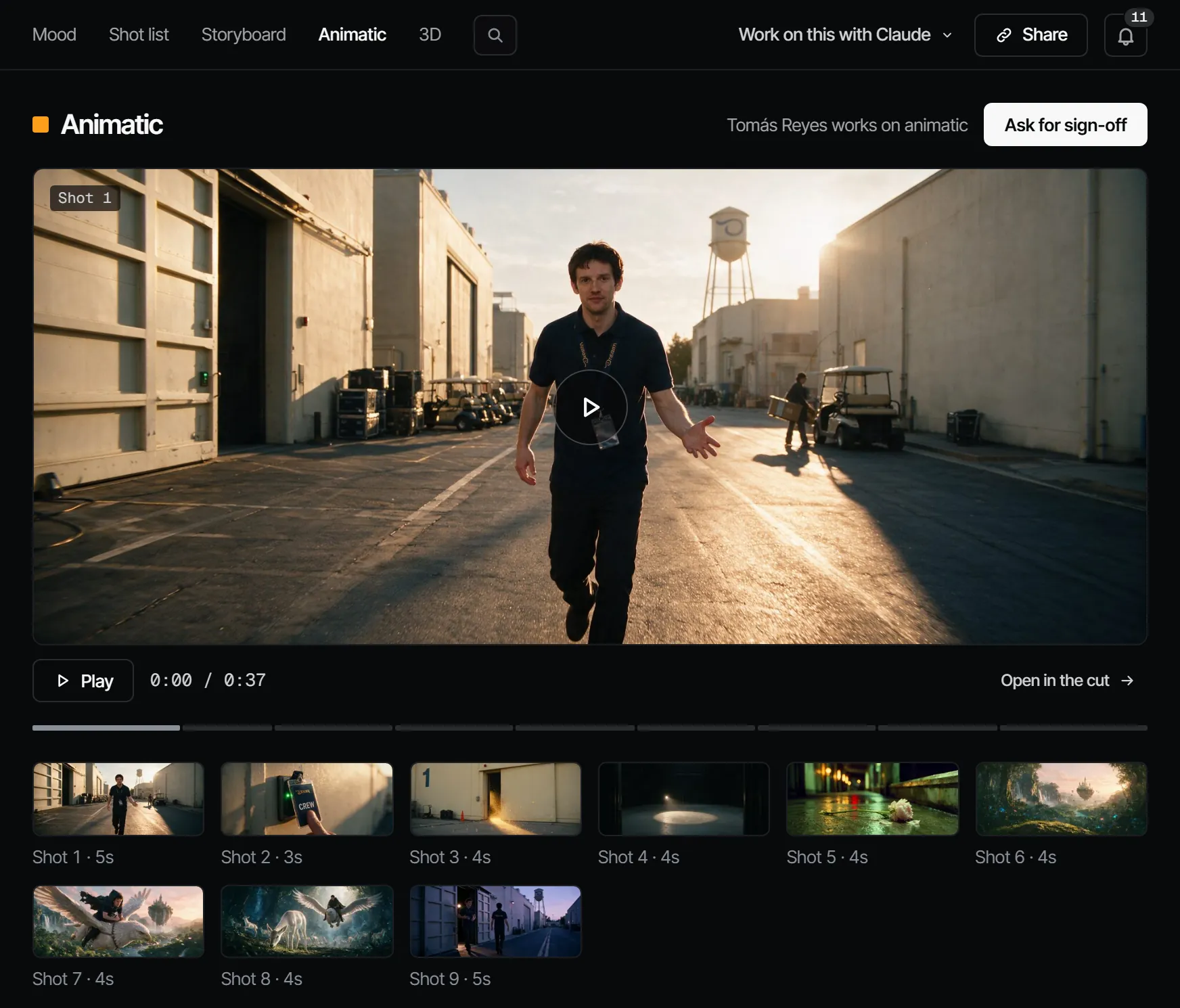
The animatic is a still per shot with its dialogue, played in cut order; signing it off opens the gate to the finals.
The animatic is the whole episode as a story reel: one still per shot, held for the length of the shot, with the dialogue. It is the cheapest way to see whether the episode works, and the step that opens the finals. You work on it under Storyboard: Storyboard for the stills, Animatic for the reel, and 3D for blocking frames.
What this step produces #
A reel built from what is picked, never edited by hand:
- the picked still (keyframe) of every shot, in cut order;
- each held for the shot's length;
- with the dialogue and sound picked for it.
Storyboard → Animatic shows the reel. Space plays or pauses it; the arrow keys move between shots. Open in the cut shows the same shots in the cut.
Who works on it #
On a film crew, the director with a storyboard artist or editor. Those are crew jobs, not Filmsquare roles: what a person may do comes from their workspace role. A producer sets who works on the step on the Crew page. Picking a take needs the director role or higher.
How AI prepares it #
- Open Storyboard → Storyboard: a grid of the picked stills in cut order, with an outline for a shot that has none.
- Choose Make N stills to start a draft still for every shot with nothing to look at yet, or select a shot and choose New still. Each still is a draft take, and the price is on the button.
- Select a shot and click the take you want under Takes to pick it. Or open the shot, describe it in the composer with the cast, sets and props as @handles, choose Still and Generate, then Pick this take. "The picked still goes to the animatic."
- Repeat per shot. The reel fills in as stills are picked.
Review a long board #
On a long episode, read the board by scene and by its open notes.
- The scene rail lists every scene with its picked stills of all (
3/8) and its open notes. Click a scene to scroll the board to it. On a phone the rail is a strip above the board. - With notes shows only the frames with open notes; All shots shows the whole board again. Moving and duplicating shots is off under With notes, because a move needs the whole order.
- N goes to the next frame with open notes, Shift+N to the previous one. The panel shows where you are, for example "2 of 5 with notes".
The panel of a frame shows its still large, its takes under Takes, and its notes in two parts: On Take N for the notes on the frame's take, On the shot for the notes on the shot. On a note, Retake from this note (maker role and up) makes a new take from that take, with the note's words added to the prompt. Choose Draft or Final; the price stands on Retake in credits and euros before it starts. A take that was uploaded has nothing to retake from. See Make a retake from notes.
Share animatic (reviewer role and up, on a paid plan) makes a link for guests outside the crew: they sign in with their own account, watch the picked stills back to back and leave notes.
Blocking in 3D #
Storyboard → 3D shows, per shot, a frame rendered in Blender next to the shot's current still. Blender stays outside the app. A frame comes in through your own Claude, or with Import on the shot (maker role and up): a picture, and optionally Lens (mm), Height (m) and Move. The newest frame counts.
Make still makes a still take from the frame, with the price on the button. The frame sets the structure; cast, costumes and set come from the shot as usual.
Clips go here too: a move clip on a shot, a blockout on a run of shots (a take), a scene, a sequence or the whole episode. They come in through your own Claude, or with Import clip above the shots and Clip on a shot. A clip with the same name on the same stretch becomes its next version.
Animatic videos #
Storyboard → Animatic also takes a video, with its sound, on a scene, a run of scenes (a sequence) or the whole episode, next to the reel built from stills. Bring one in with Import video or through your own Claude.
Each video says whether it Counts for sign-off. Scene by scene the most specific video counts: a scene's own before a sequence's, a sequence's before the whole episode's. A scene with no video counts its stills. With two videos on the same stretch the newest counts; a director can choose the other with Count this one. Archive a video and what covers that stretch next counts.
Signing it off #
Signing off the Animatic says: this is the episode, shot by shot. It is the one step that always gates the finals, in every production and template.
To watch it with notes, open Review → Player and choose Animatic under What plays: the picked stills back to back, with notes on the timeline, a share link and the sign-off. The reel and animatic videos stay under Storyboard → Animatic.
When it is signed off, the finals can render, or the Final department names the departments they still wait for.
What makes it go stale #
The Animatic goes Changed after sign-off ("A new pick came in after the sign-off") when:
- an animatic video comes in, is archived, or another one counts;
- a still, dialogue, sound effect or music take is picked;
- a shot's length changes;
- anything before it changes: Casting, Wardrobe, Sets or Props (through a new element version), the Breakdown or the script.
A stale animatic closes the gate again. The change flows on to the Draft and the Final.
What it costs #
A still costs 1.66 credits · €0.08 on Seedream 5.0 Pro, or 2.94 credits · €0.15 on Nano Banana 2 where the server offers it. Routing picks the model with the lowest cost per accepted take unless you choose one.
With your own Claude #
The tools are under With Claude on this page. Stills (after an estimate), picks and blocking frames
(add_to_visualize, makeBlockingStill) go through find_actions and run_action.
With Claude
MCPYour own Claude does this over MCP, in your name and with your role:
work_on_stepPromptA working method: prepares one department step of an episode for sign-off, with the cost first.
Ask: Use the Filmsquare work_on_step prompt for Animatic on episode 2.
get_episodeShows an episode's scenes and shots in cut order, every department step, and whether finals can render.
Ask: Where does episode 2 stand, and who is each step waiting on?
view_mediaLooks at a still, keyframe or take; video comes back as its poster plus a download link.
Ask: Show me the picked still of shot 3 and tell me if it matches its references.
upload_fileAdds a file you have as a new take on a shot or scene, or as a production asset (10 MB at most).
Ask: Upload this reference photo to the assets of the production.
get_continuityLays an episode's picked shots side by side, with the element versions each one uses.
Ask: Lay out the picks of scene S2 for a continuity check.
report_continuityRecords the continuity check you did; each mismatch becomes a note on the shot's pick.
Ask: Check continuity in scene S2 and report the mismatches you find.
request_signoffAsks the signers of a department step to sign off; they get a notification.
Ask: Ask the signers of Animatic on episode 2 to sign off, with a note on what changed.
sign_offRecords your decision on a step: signed off or changes requested. Only when you ask it to decide.
Ask: Sign off Animatic on episode 2 for me.
find_actionsSearches everything the API can do and returns the matching actions with their inputs.
Ask: Find the action that changes a step's sign-off rule.
run_actionRuns one action found with find_actions, as you, with your role and rights.
Ask: Pick the second take of shot 5 on episode 2.
where_does_it_goTells you which screen a file belongs on: the map, a decision tree and worked examples.
Ask: Where does this blockout reel go?
prepare_uploadGives signed upload links and ready-made curl commands for up to 100 files on disk.
Ask: Upload the videos in this folder.
add_to_visualizePuts uploaded files under Storyboard, 3D or Animatic, on shots and scenes by code.
Ask: Put the Blender work under 3D and the animatics under Animatic.
Connect Claude 5.1