3.0 The departments3.1 Writing
Writing
How to write or import the script of an episode, how versions work, and what signing off Writing starts.
Writing holds the script of an episode and every revision of it. It is the first department: the breakdown, the cast, the sets and the shots are all read from the script, so everything after it depends on this sign-off. You work on it under Script, in two tabs: Script and Docs.
What this step produces #
A script revision: the text of the episode, numbered (Script v1, Script v2 …) with a note on what changed.
Revisions never change once they are made. Script → Script shows the newest, with its scenes down the side. With
more than one version you can open an earlier one from the version menu, or choose Changes since vN. Script →
Docs lists the script and the other files of the step.
Writing the script in the app #
A director or higher can write the script here, and so can a maker the producer put on Writing.
- Open Script → Script. With no script yet, the editor opens on an empty page (Write it here under Docs goes to the same place). With a script, choose Write.
- Write in Fountain. Tab and Return walk the screenplay elements: Scene heading, Action, Character, Parenthetical, Dialogue and Transition. The menu in the header shows the element of the line you are on, and changes it.
- Add a note on what changed.
- Choose Save as vN (Ctrl Shift S), with N the next number.
The draft stays in your browser until you save it. Saving makes a new version; earlier versions never change. Saving the same text again makes no new version. The page, the keys, drafts, story bible and table read are on Writing a script.
Write is not offered on a version that came in through a pipeline import, or on one too long to load in full.
Your own Claude can change part of a script too: edit_script replaces exact text (a scene, a speech, a line) and saves the result as a new version, the same as Save as vN. It reads a long script in parts with get_script, so it never has to send the whole script back.
Bringing in the script #
A director or higher imports the script under Script → Docs.
- Open Script and choose the Docs tab.
- Under Bring in the script (or Import a new version once there is one), paste the text, or choose
Choose file. the app reads Final Draft (
.fdx),.fountain,.txtand.md. What a Final Draft file does not bring along (revision marks, ScriptNotes, tags, locked pages, headers and footers) is listed as warnings under the import result. PDF, Word and Final Draft 8 (.fdr) files are refused with a message: save the script as Final Draft (.fdx) or Fountain. - Add a note on what changed in this version.
- Choose Import script.
The import saves the text as a new revision, reads it into scenes (one shot each), cast, sets and dialogue (see Breakdown), and then asks for the Writing sign-off. Importing the same text twice does nothing: "Nothing new: this is the same script as the latest version."
A new version updates what changed: scenes, shots, cast, sets and lines are matched by their codes, handles and
positions, so nothing is added twice. A script without its own scene numbers or labels gets its codes from where each
heading stands, so there a scene is found by its heading: add, delete or swap scenes and a scene whose heading stays
keeps its takes and picks. The exceptions come with a warning in the import result: a heading that now occurs a
different number of times stays where it is; a code already held by something the import did not make stops all moves,
so takes may end up on another scene; a scene whose heading left while others moved or the number of scenes changed, and the further shots of a scene
that lost its label, are archived with their takes.
Scenes, shots and lines that an earlier import made and the new version no
longer has are archived, never deleted. Text without scene headings (INT., EXT.) is refused when an earlier
import already made a breakdown, because it would replace the whole breakdown.
You can also start a production from a script: see Your first production.
Printing and exporting the script #
Every version exports itself. Open the version menu (v3, next to the name Script) and choose:
- Print…: the browser's print dialog (Ctrl P works too);
- Download PDF…: the same dialog, to save as PDF;
- Download Fountain;
- Download Final Draft.
The file is named Production - Episode 2 - Script v3 (a film: Production - Script v3). The title page prints on its
own sheet. Notes and Changes since vN are not in the file. Dual dialogue prints side by side. Anyone who can read
the script can export it.
Who works on it #
On a film crew, the writer and the director. Those are crew jobs, not Filmsquare roles: what a person may do comes from their workspace role. A producer sets who works on Writing and who signs it off on the Crew page. A director or higher can write and import the script. A maker on Writing can write it in every episode of the production, but not import it.
How AI prepares it #
The script is your crew's work: you write it in the app or bring it in, and Filmsquare does not generate it. What AI does here is read it. The Fountain reader runs on an import, instant and free. For a full breakdown with acting notes, a crew member uses their own Claude (see below).
Signing it off #
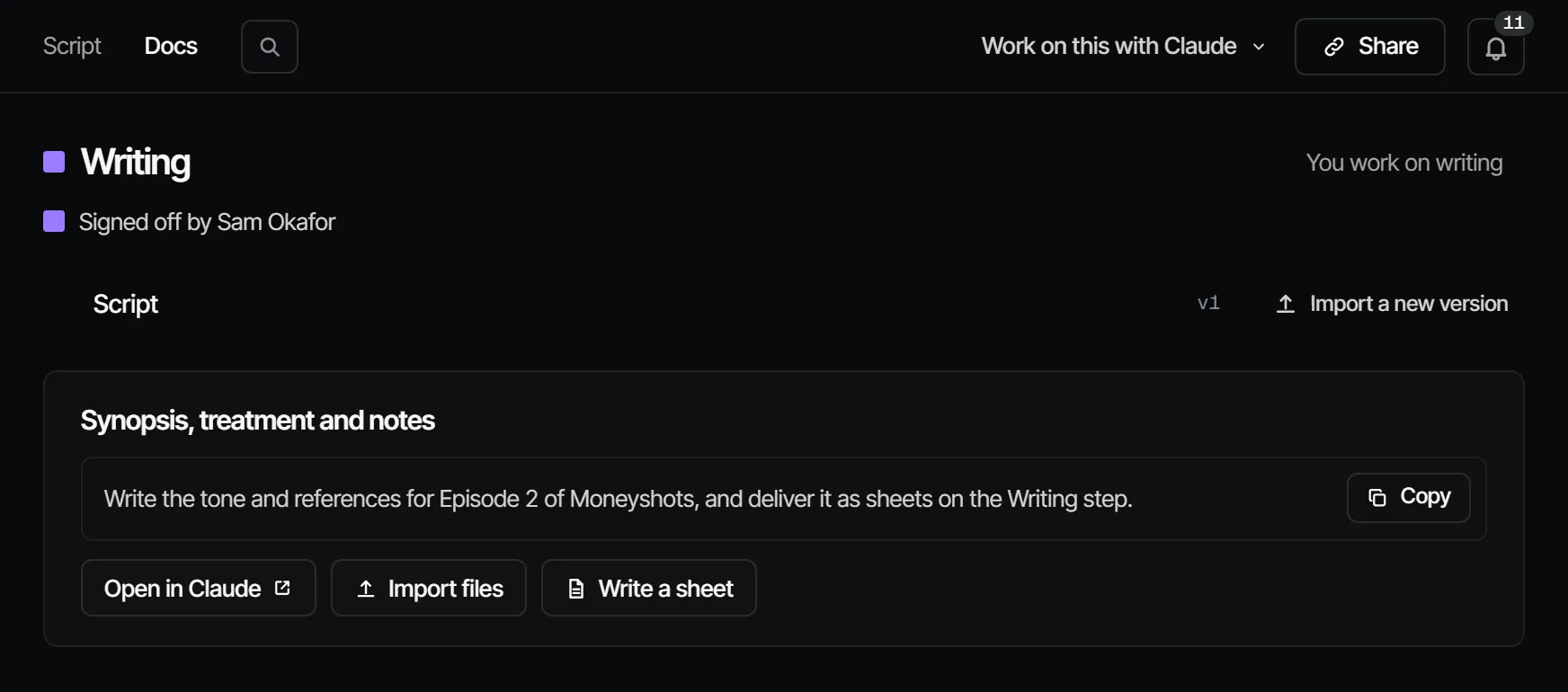
Signing off Writing says: this is the script we are making. It does not lock the finals by default, but every other department depends on it. Ask for sign-off and Sign off writing are at the top of Script → Docs.
What makes it go stale #
A new script revision, written or imported, makes Writing Changed after sign-off ("Script v4 came in after the sign-off"). The change flows on to Breakdown and every department after it, so a rewrite reopens the episode down to the final.
What it costs #
Nothing in credits. The Fountain reader is free, and your own Claude runs on your own Claude subscription, not on Filmsquare credits.
With your own Claude #
The tools are under With Claude on this page. The prompt break_down_episode walks Claude through get_script and
submit_breakdown; see Prompts and working method. To save a new version without a new
breakdown, Claude uses createScriptRevision through find_actions and run_action.
With Claude
MCPYour own Claude does this over MCP, in your name and with your role:
get_scriptReads the latest script revision of an episode, with the @handles that already exist.
Ask: Read the script of episode 2 and tell me which characters have no @handle yet.
edit_scriptChanges a scene, a speech or a line of an episode's script and saves it as a new version, without sending the whole script.
Ask: Rewrite the opening of S02 in episode 2 the way we just discussed, and save it as a new version.
submit_breakdownPuts your breakdown into Filmsquare: scenes, shots, dialogue, cast, sets and props.
Ask: Break down the script of episode 2 and submit it. Reuse the handles we already have.
request_signoffAsks the signers of a department step to sign off; they get a notification.
Ask: Ask the signers of Writing on episode 2 to sign off, with a note on what changed.
sign_offRecords your decision on a step: signed off or changes requested. Only when you ask it to decide.
Ask: Sign off Writing on episode 2 for me.
work_on_stepPromptA working method: prepares one department step of an episode for sign-off, with the cost first.
Ask: Use the Filmsquare work_on_step prompt for Writing on episode 2.
Connect Claude 5.1