1.0 Getting started1.3 Your first production
Your first production
Start a production from a script, a template or empty, invite your crew, set who works on each department, and get your first sign-off.
A production holds a series or a film: its episodes, shots, cast, sets and the crew that signs them off. You set one up in three steps: how to start, who is on the crew, and who works on what. Nothing is generated until you say so.
Making a production needs the producer or owner role. On the Free plan a workspace has one production.
Step 1: how to start #
- Choose New production on Home or on Productions.
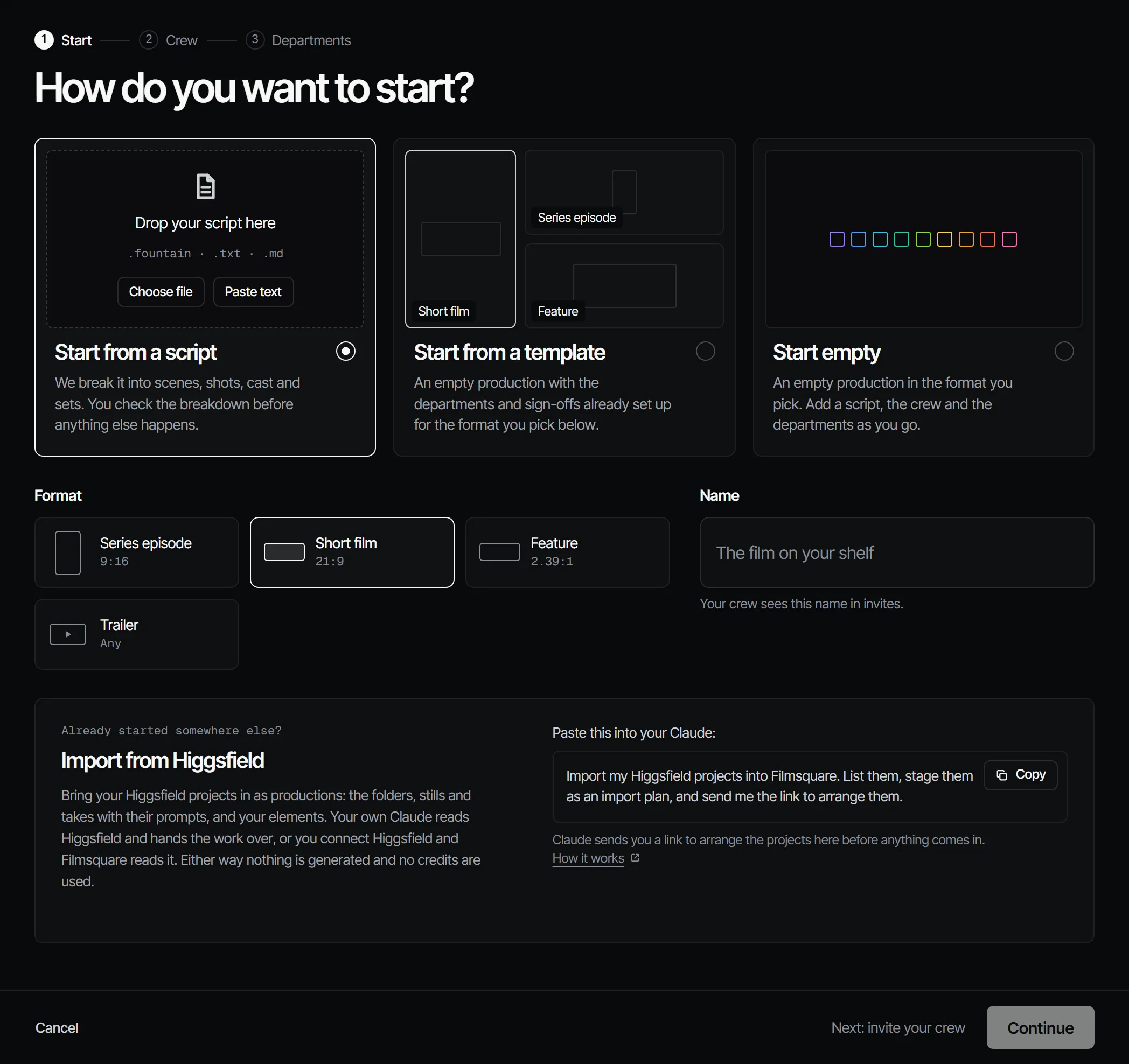
- Pick a Starting point:
- Start from a script: drop a
.fdx,.fountain,.txtor.mdfile, or choose Paste text. Filmsquare breaks it into scenes, shots, cast and sets, and you check the breakdown before anything else happens. - Start from a template: an empty production with the departments and sign-offs already set up for the format.
- Start empty: add a script, the crew and the departments as you go.
- Start from a script: drop a
- Pick a Format: Series episode, Short film, Feature or Trailer.
- Give it a Name. Your crew sees this name in invites.
- Choose Continue. The production is made when you leave this step.
What the formats set up #
| Format | Frame | Skipped | Locks the finals | Draft and Final signed off by |
|---|---|---|---|---|
| Series episode | 9:16 | Nothing | Casting, Wardrobe, Sets, Props, Draft | Director |
| Short film | 21:9 | Nothing | Casting, Wardrobe, Sets, Props, Draft | Director |
| Feature | 21:9 | Nothing | Casting, Wardrobe, Sets, Props, Draft | Director (Draft), Producer (Final) |
| Trailer | 16:9 | Wardrobe | Draft | Director |
The Animatic always gates the finals. You can change every rule later on the Crew page. See Sign-off and gates.
Step 2: who is on the crew #
- Under Invite by email, enter an address and pick a Role. Choose Add another for more people.
- Choose Send invitation (or Send 3 invitations). Each person gets a link that works once. Copy it and send it to them.
- Choose Continue.
Only a producer or owner can invite crew. You can skip this step and invite people later from the Crew page. See Crew, roles and access.
Step 3: who works on what #
For each department, pick who works on it and who signs it off. Until you pick someone, a director or higher signs each department off. You can also add an extra department here: Voices, Music, Sound or Edit (see Extra departments).
Choose Open the production to go to its Home.
On Home #
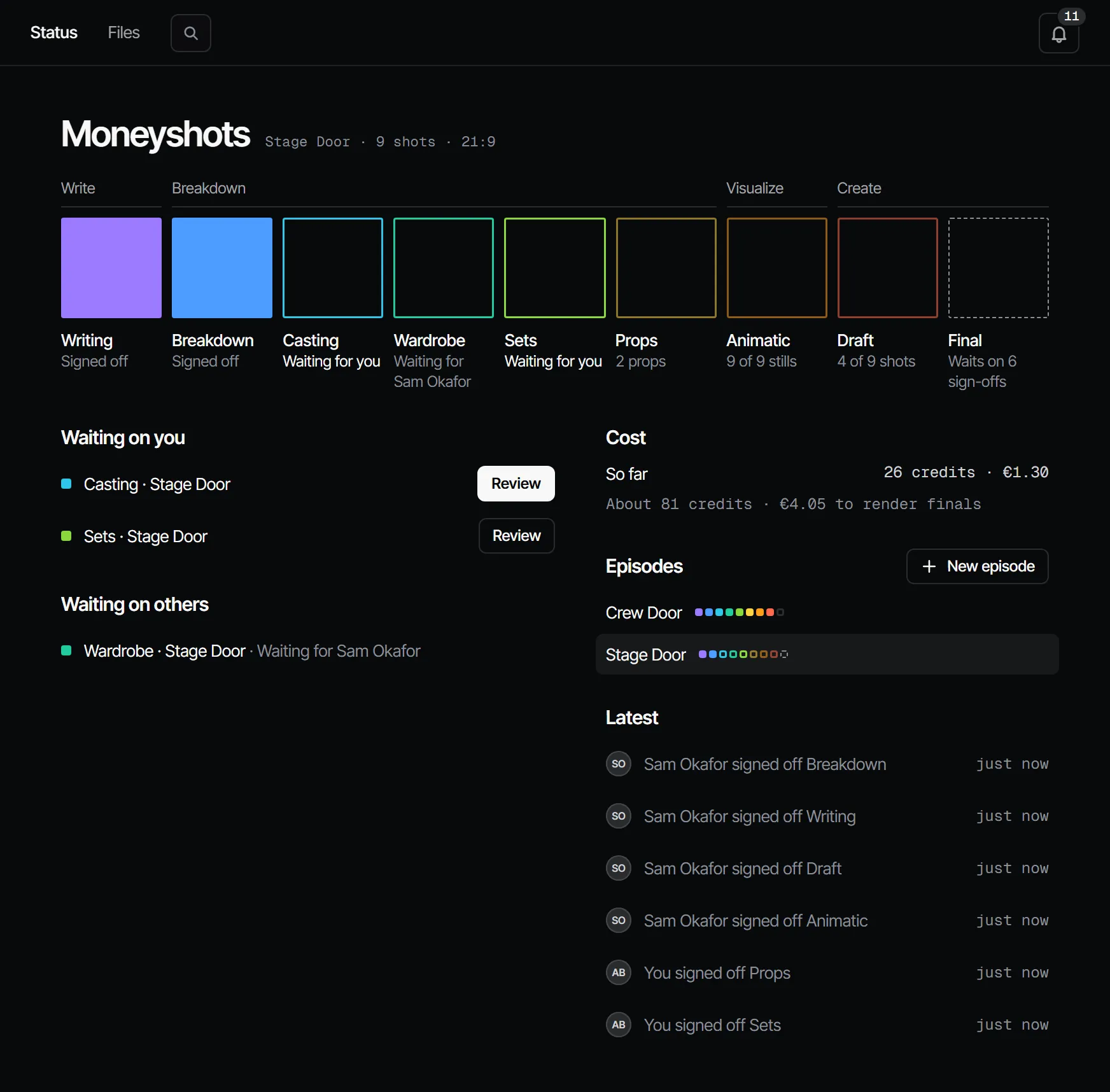
The production opens in the sidebar into its menu: Home, Script, Cast & sets, Create, Storyboard, Edit, Review, Crew & sign-off and Settings. Home → Status shows the nine departments of an episode as squares, one per department. Each square reads Open, In progress, Waiting for sign-off, Signed off or Changed after sign-off.
If you started from a script, Writing now waits for sign-off. The person who signs Writing off sees it under Waiting for you.
Your first sign-off #
- Open the Writing square and read the script. Check the breakdown under Storyboard → Shot list and Cast & sets → Cast, Locations and Props.
- If it is right, choose Sign off writing at the top of Script → Docs. If not, choose Request changes and say what should change.
- Once Writing and Breakdown are signed off, Casting, Wardrobe, Sets and Props can run in parallel.
To let someone else sign off, choose Ask for sign-off with a note on what to look at.
A full breakdown with your own Claude #
The app reads a Fountain script into scenes, characters and locations, one shot per scene. For a full shot list
with acting, dialogue, cast, sets and props, let your own Claude do the breakdown: connect it (see
Connect Claude) and choose Work on this with Claude → Break down the script in the
top bar of a department. Claude reads the script with get_script and submits it with submit_breakdown; it runs on your Claude
subscription, not on Filmsquare credits.
Next #
With Claude
MCPYour own Claude does this over MCP, in your name and with your role:
get_scriptReads the latest script revision of an episode, with the @handles that already exist.
Ask: Read the script of episode 2 and tell me which characters have no @handle yet.
submit_breakdownPuts your breakdown into Filmsquare: scenes, shots, dialogue, cast, sets and props.
Ask: Break down the script of episode 2 and submit it. Reuse the handles we already have.
request_signoffAsks the signers of a department step to sign off; they get a notification.
Ask: Ask the signers of Writing on episode 2 to sign off, with a note on what changed.
Connect Claude 5.1