4.0 Working together4.1 Crew, roles and access
Crew, roles and access
The six workspace roles, what each may do, which productions a person can open, and how to invite crew.
Everyone in a workspace has one role. The role says what they may do; their production access says where. Who works on a department and who signs it off is set per production, on its Crew page.
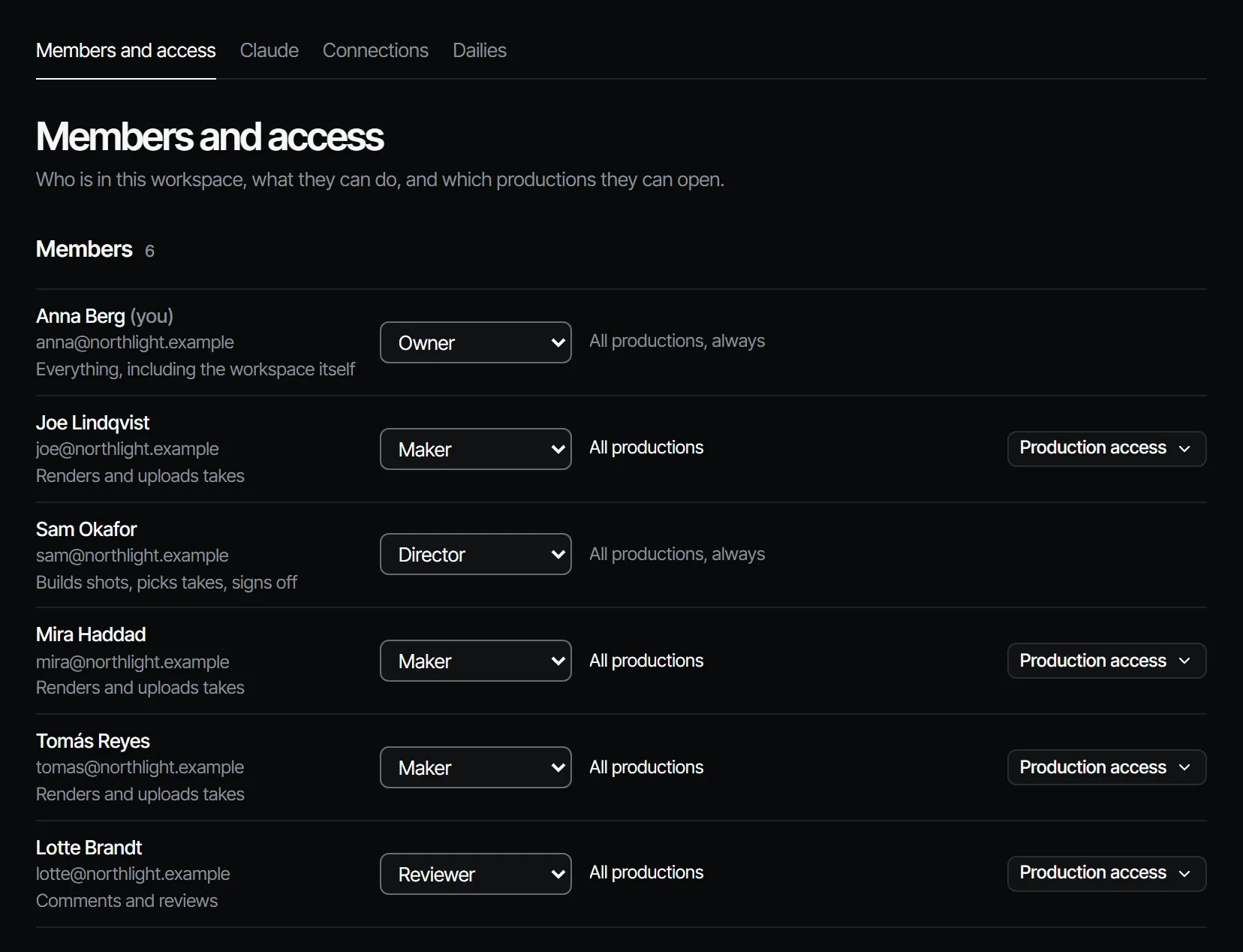
The six roles #
Roles rank from high to low. A higher role can do everything a lower one can.
| Role | In the app |
|---|---|
| Owner | Everything, including the workspace itself |
| Producer | Runs briefs, members and costs |
| Director | Builds shots, picks takes, signs off |
| Maker | Renders and uploads takes |
| Reviewer | Comments and reviews |
| Viewer | Looks, nothing else |
Who can do what #
| Action | Lowest role |
|---|---|
| Make a production or an episode, invite crew, change sign-off rules | Producer |
| Make shots and scenes, pick takes, import a script, reorder the cut | Director |
| Render takes on shots, add elements, folders and canvas nodes, ask for sign-off | Maker |
| Write the script (when on Writing) | Maker |
| Comment and reply | Reviewer |
| Open and read | Viewer |
| Sign off a department | Set by the step's sign-off rule; without a rule, director or higher |
Buying seats and credit packs is for the owner. See Sign-off and gates for the sign-off rules.
Production access #
Owners, producers and directors open every production. For makers, reviewers and viewers you choose:
| Access | They see |
|---|---|
| All productions | Every production in the workspace |
| Only these productions | The productions you tick, and any production they are assigned work in |
| Only what they are assigned | A production once a brief in it is offered to them |
Only what they are assigned fits a freelance maker: they see nothing until you offer them a brief. A production's Settings → General lists its People: everyone who can open it.
Invite someone #
- Open Settings → Members (Settings is in the workspace menu).
- Under Invite someone, enter the Email, pick the Role, and choose the Productions they can open.
- Choose Send invitation. Copy the link with Copy link and send it to them yourself.
- They open the link, sign in or create an account, and choose Join.
Inviting needs the producer role. You can also invite from a production's Crew & sign-off page with Invite crew. That dialog asks only for the Email and the Role, and the person can open every production; to limit what they see, invite them from Members instead, or change their access later. In both places you can invite up to your own role, never as owner.
Seats #
On a plan, owners, producers, directors and makers each take a seat. Reviewers and viewers are free. When every seat is taken, an owner on Studio or Production sees Add a seat and send invitation with the price; others are asked to get an owner to add one, or to invite a reviewer or viewer. An open invitation holds its seat until it is accepted. See Plans, credits and packs.
Changing a role #
A producer or owner changes a member's role with the role menu in Members. The menu offers roles up to your own; a member whose role is above yours cannot be changed by you. A producer or owner can also take someone off the workspace, and anyone can leave it: see Workspace settings and members. When someone who signs off a department leaves, the department waits on its other signers, or on a director or higher when none is left; what they signed off stays signed.
The Crew page of a production #
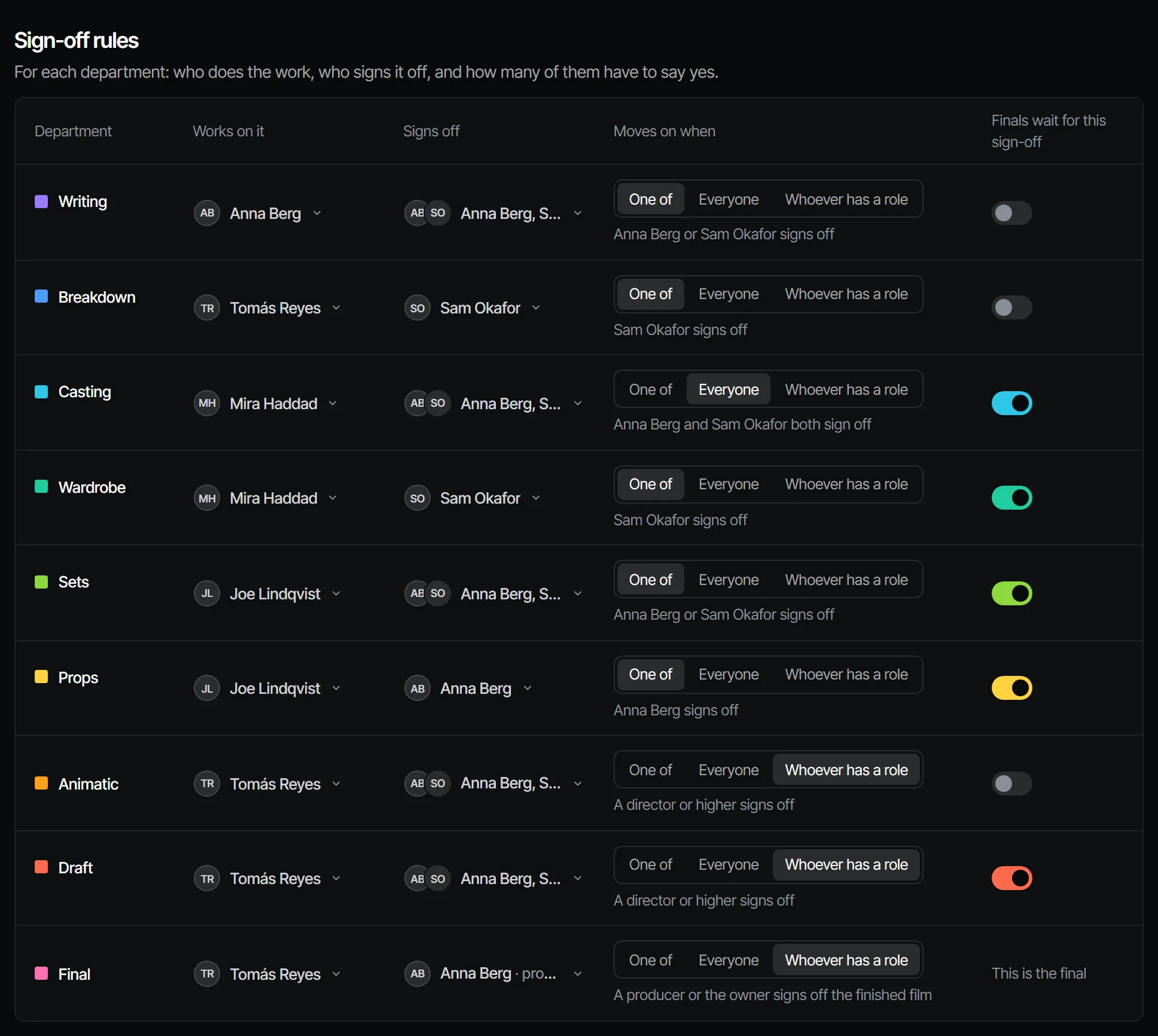
Each production has a Crew page, under Crew & sign-off → Crew. Per department it shows:
- Works on it: who does the work;
- Signs off: who decides;
- Moves on when: one of them, everyone, or whoever has a role;
- Lock finals until signed off;
- Skipped: the department is out of this production.
On a department's page a producer can also assign someone to one item of a step: a cast member, set, prop, scene or shot (Assign crew to …). The department line then reads, for example, "Anna works on sets · Sam on Backlot street".
Seeing who is where #
Avatars in the top bar show who else is in the production and where (hover for the place). Choose an avatar to follow that person: your view moves with theirs, and the top bar reads "Following" with their name. Choose Stop (or press Esc), or the avatar again, to stop. People get neutral avatars; colour is kept for departments.