4.0 Working together4.6 The canvas
The canvas
A node board inside a production where you wire prompts, cast, sets and references into a model node and render takes, live with your crew.
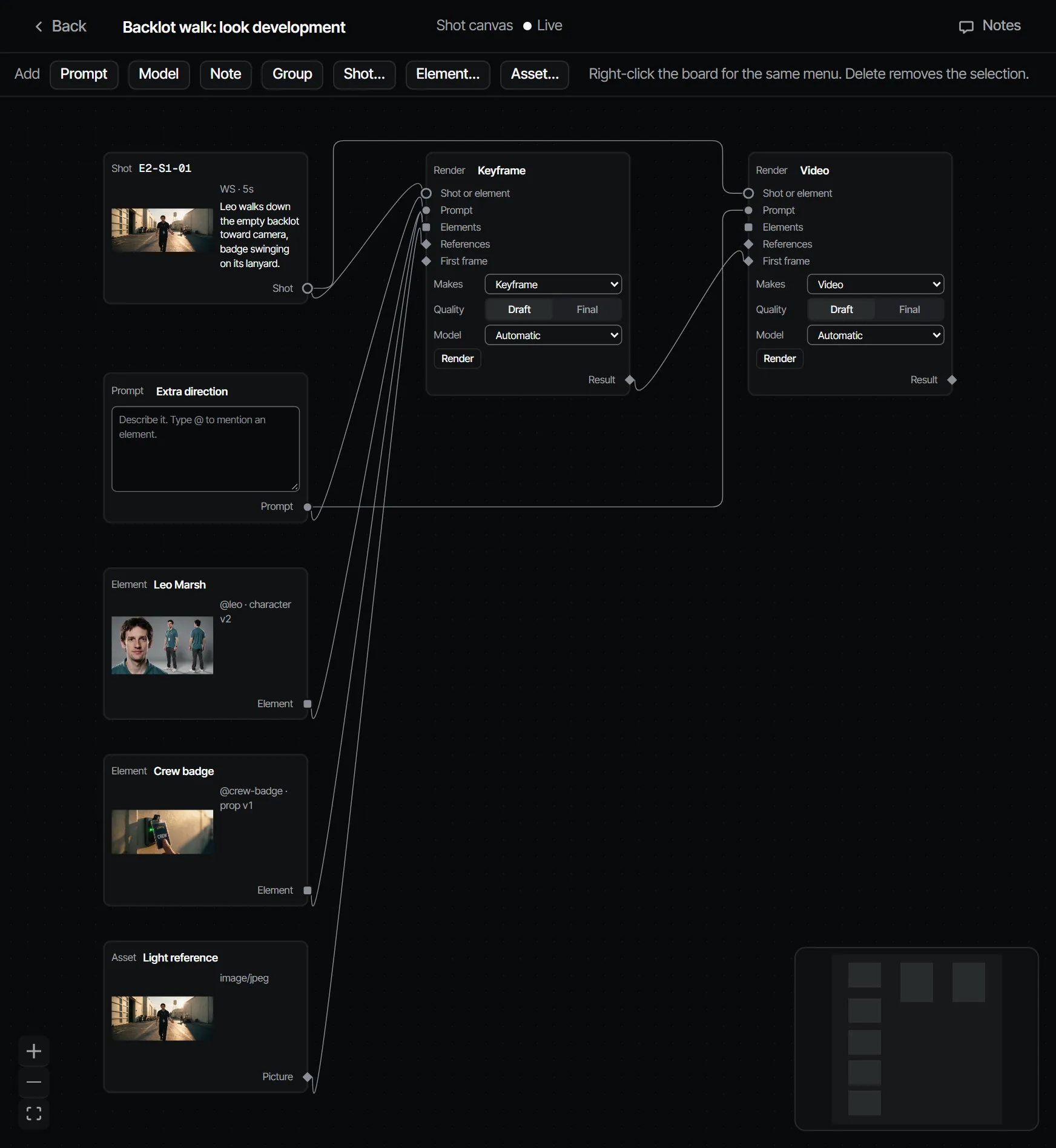
A canvas is a board of nodes, inside a production or for the whole workspace. You lay out a prompt, the cast and sets, reference pictures and notes, wire them into a model node, and render. What it renders is an ordinary take on the shot, so it shows up in the shot, in review and in the cut like any other. A canvas is a tool inside a step, not the production itself.
Open a canvas #
- From a shot: choose Open canvas in the shot. This is the shot's canvas.
- From an element: its element canvas, for reference sheets.
- A free board: in the production, open Create → Mood and choose New canvas.
- A board for the whole workspace: in Create → Mood outside a production, choose New canvas. Every member sees it and makers edit it. It holds workspace elements and files only, and a model node without a target makes a loose take in your own sketchbook (director and above): only you see that picture until you choose Put on canvas.
Create → Mood lists the production's canvases under Canvases, below its looks.
Looks #
A look under Mood is a style element made from images. In Create outside a production, a look belongs to the whole workspace and can also take your loose stills. Choose New look, give it a Name, and select images: the production's picked stills and image files, or ones you add. Make look from N images makes it, with an @handle you can call in any shot. Making one needs the maker role or higher. For costumes, see Wardrobe.
Nodes #
Choose Add, or right-click the board, to add a node:
| Node | What it holds |
|---|---|
| Prompt | The description. Type @ to mention an element |
| Model | What to render, at which quality, with which model |
| Note | A note to the team |
| Group | A frame around nodes that belong together |
| Shot… | A shot of the production |
| Element… | A cast member, set, prop or style |
| Asset… | A file: an upload, or a take from a shot |
Select a node and press Delete to take it off the board. Nodes are archived, never deleted. A shot, element or asset node points at the real one in the production: nothing is copied, so a change there shows here.
Render from a model node #
- Wire a Shot… (or an Element…) into the model node as its target.
- Wire in a Prompt, elements, references, and optionally a first frame.
- In the model node, choose what it Makes (Keyframe, Video or Dialogue), the Quality (Draft or Final), and the Model (Automatic picks the capable model with the lowest cost per accepted take).
- Choose Render.
The take lands on the shot, or for an element as a reference sheet. Its status shows on the node. The result of a still node can be the first frame of a video node.
Working on it together #
A canvas is live. Everyone who opens it sees the others' cursors and changes as they happen. The canvas header shows the connection: Live, Connecting…, Syncing every 3 s (when the live connection is not available) or Offline, retrying.
Editing needs the maker role. A reviewer or viewer sees the canvas Read-only. You can also pin a note on a spot of the canvas or on a node; see Notes, pins and review.
Templates #
A template is a ready set of nodes and wires, bound to a shot or elements when you apply it. Filmsquare has
built-in templates, and a canvas can be saved as a template for the workspace. For now templates are used through
the API or your own Claude (find_actions "canvas template"), not yet from a button in the app.