1.0 Getting started1.2 Sign up and your workspace
Sign up and your workspace
How to create a Filmsquare account (no access code needed), confirm your address by mail, join with an invitation, sign in (also when you forgot your password or your account asks for a second step), and set up your first workspace.
Filmsquare runs at https://app.filmsquare.ai. Anyone can create an account: you need no access code or invitation. Your account then gets a workspace: your studio, where its productions, crew and costs live.
Get an access code #
You need no code to sign up. A new account starts on the Free plan, with no card and no credits. An access code adds starter credits to your first workspace: 500 credits · €25.00 by default. Ask for one at hello@filmsquare.ai.
If someone on a crew invited you, you need no code either: the invitation link lets you in.
Create an account #
- Open https://app.filmsquare.ai and choose New here? Create an account.
- Tick that you agree to the Terms of Service. Send me product news is optional.
- Enter your Work email. Have an access code? Type it under Access code (optional).
- Wait for the check that you are a person, and choose Create account.
- The page says Check your email: Filmsquare mails a link to that address. Open it on this device.
- The link opens Choose a password. Choose one of at least 10 characters and choose Confirm. You are signed in. When the device needs a second step first, the sign-in page says your address is confirmed: sign in there.
An address that already has an account gets no link: choose Already confirmed? Sign in instead. The link works once and for 48 hours; after that, sign up again. Codes are not case-sensitive, and a code is used up only once you confirm your address.
When the field reads Access code without "(optional)", sign-up without a code is paused for now: try again later, or use an access code or an invitation.
With Google #
On the create-account page, fill in your Work email (and an access code, if you have one), agree to the terms, then choose Continue with Google instead of Create account. Pick the Google account with that same address: signing in with it confirms your address, so there is no mail to wait for and no password to choose. Apple and Microsoft sign in to an account that already exists; they do not create one.
With an invitation link #
- Open the link from the invitation you were sent.
- The sign-in page says Sign in, or create an account, to accept your invitation. It opens right after. Already have an account? Sign in. New to Filmsquare? Choose New here? Create an account: the page says Your invitation lets you in. and has no code field. Choose Create account with the invited email address, or Continue with Google with that address.
- With Create account, open the link Filmsquare mails you and choose a password, as above.
- The invitation opens right after: choose Join followed by the workspace name (for example Join Pilot Studio) to become a member, with the role you were invited as.
An invitation works once, for the address it was sent to, and expires after 7 days. Ask whoever invited you for a new one if it no longer works.
Sign in #
- Continue with Google, Apple or Microsoft: for an address that already has an account. The page shows the ones that are switched on.
- Sign in with a passkey: when your account has one and your browser can use it.
- Email and password: type both and choose Sign in.
- Email me a code: leave the password empty. Filmsquare mails you a six-digit code; type it on the page.
Your crew sees your email address until you set your name under Settings → Account.
Forgot your password #
- On the sign-in page, enter your Work email and choose Forgot password?.
- Filmsquare mails you a reset code. Type it under Reset code and choose Continue.
- Choose a New password of at least 10 characters and choose Save and sign in.
You are signed in here and signed out on your other devices. An account without a password (made with Google, for example) gets no reset code: leave the password empty and sign in with a mailed code instead.
A second step #
When your account asks for a second step, the sign-in page asks for it after your password or code:
- Authenticator app: type the Code the app shows. Use a backup code takes one of your backup codes instead.
- A code by mail: on a new device Filmsquare may mail you a code straight away. Type it and choose Sign in; Send a new code sends another.
When your account has to choose a new password first, the page says so: choose one and choose Save and sign in.
Create your workspace #
When you are in no workspace yet, Filmsquare asks for one.
- Enter a Workspace name (your company or crew name; you can have more than one workspace later).
- Choose Create workspace.
- The next screen says your workspace is ready, for example Pilot Studio is ready. With an access code it says how many credits your studio starts with, for example "500 credits · €25.00"; without one it says you need credits to generate, which you add in your studio. Choose Go to your studio.
You are the owner of the workspace you create. Inviting your crew comes with a plan; with one you invite them from Settings, see Workspace settings and members.
What a new workspace includes #
A new workspace starts on the Free plan, just you: one production, the whole process from script to cut, drafts and stills, 10 exports a day and 5 GB of storage. Final renders come with bought credits or a plan; inviting your crew and share links come with a plan. See Plans, credits and packs.
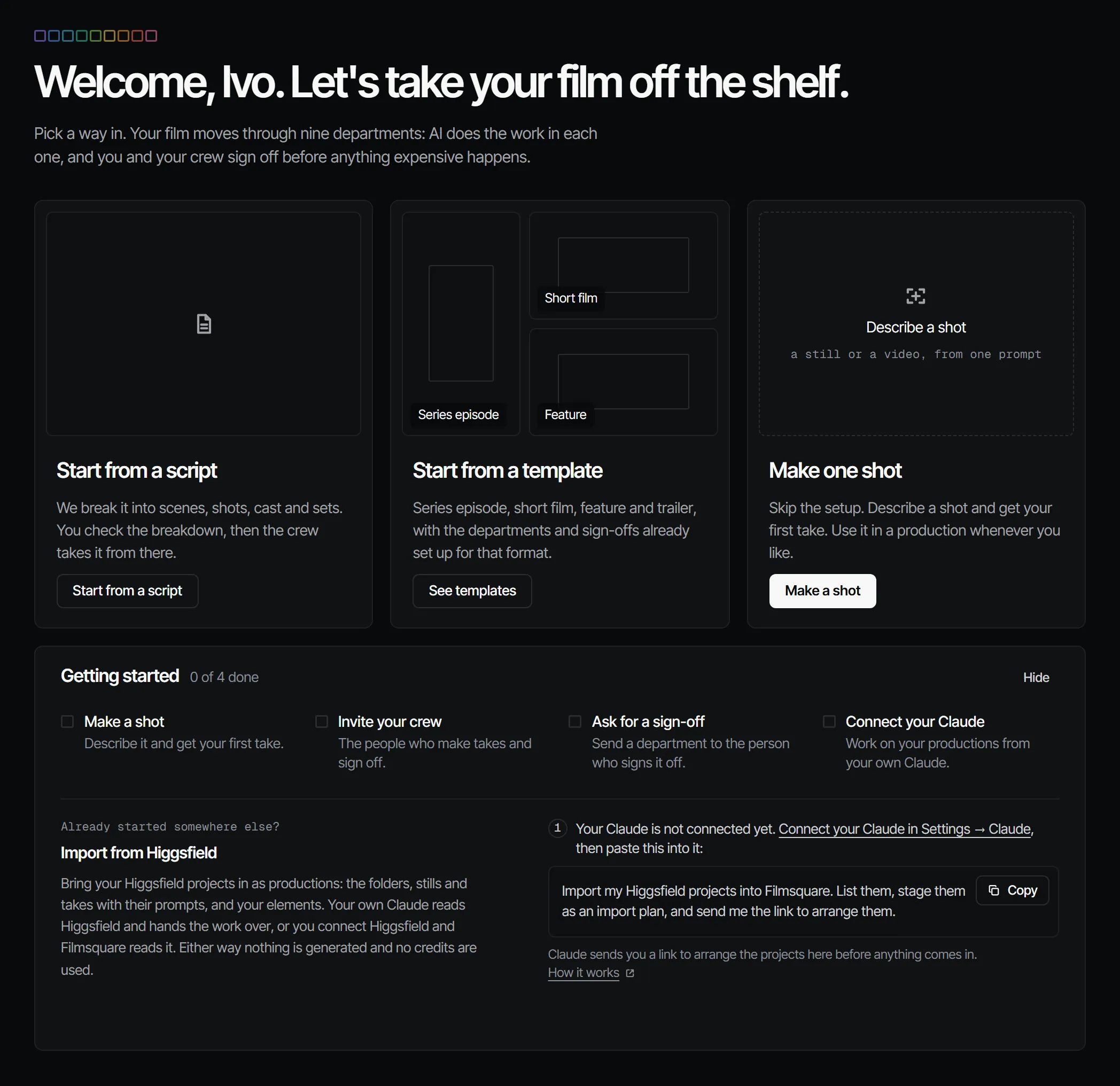
The getting-started checklist #
Owners and producers see a Getting started checklist on Home:
- Make a shot: describe it and get your first take. While the workspace has no credits this row reads Add credits and opens Billing: credits pay for your first take.
- Invite your crew: the people who make takes and sign off. On Free this needs a plan first.
- Ask for a sign-off: send a department to the person who signs it off.
- Connect your Claude: work on your productions from your own Claude.
It ticks itself off as you go, and disappears when everything is done. Choose Hide to put it away sooner in this browser.