How do I connect my own Claude (MCP)?
Every crew member can connect their own Claude to Filmsquare. Claude then works in your workspace in your name, with your role, on your own Claude subscription. The connector address is https://app.filmsquare.ai/v1/mcp, and you find it with copy buttons under Settings, then Claude.
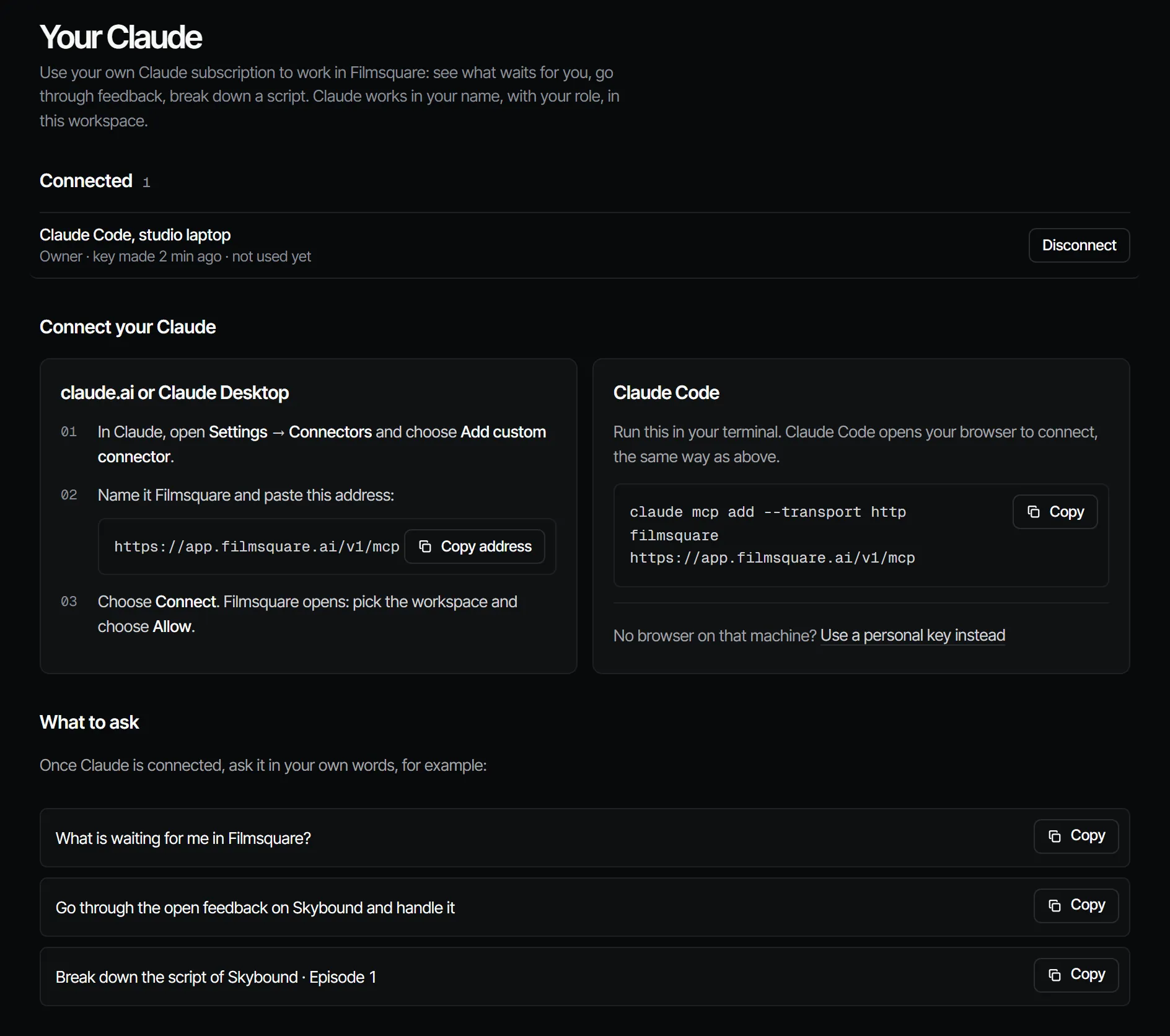
In claude.ai or Claude Desktop #
- In Claude, open Settings, then Connectors, and choose Add custom connector.
- Name it Filmsquare and paste the address.
- Choose Connect. Your browser opens the Filmsquare page Connect Claude. Sign in if you are not.
- Pick the workspace Claude may work in.
- Under Claude works as, keep your own role or pick a lower one, then choose Allow.
In Claude Code #
Run this in your terminal:
claude mcp add --transport http filmsquare https://app.filmsquare.ai/v1/mcpYour browser opens to connect. If it does not, run /mcp in Claude Code and choose the filmsquare server. For a machine without a browser sign-in, choose Use a personal key instead on Settings, Claude: see the docs.
What it costs and what it may do #
Claude's own thinking runs on your Claude subscription: Filmsquare pays no AI tokens for it, and you pay no Filmsquare credits for it. A connection is a key in your own name, in one workspace, with at most your role, so what it does shows up as you. See what a connection is allowed to do.
Disconnect #
Settings, then Claude, lists your connections and personal keys under Connected, each with its name, role and last use. Choose Disconnect to stop one right away.